


Your troubleshooting guide to setting up your Mozillion Travel eSIM on Windows 10
Check on this list if your device is compatible with Mozillion Travel eSIM services.
If your device is compatible with Mozillion Travel eSIM services, it must be equipped with an eSIM or a physical SIM card.
Step 1
Check eSIM Profile Installation
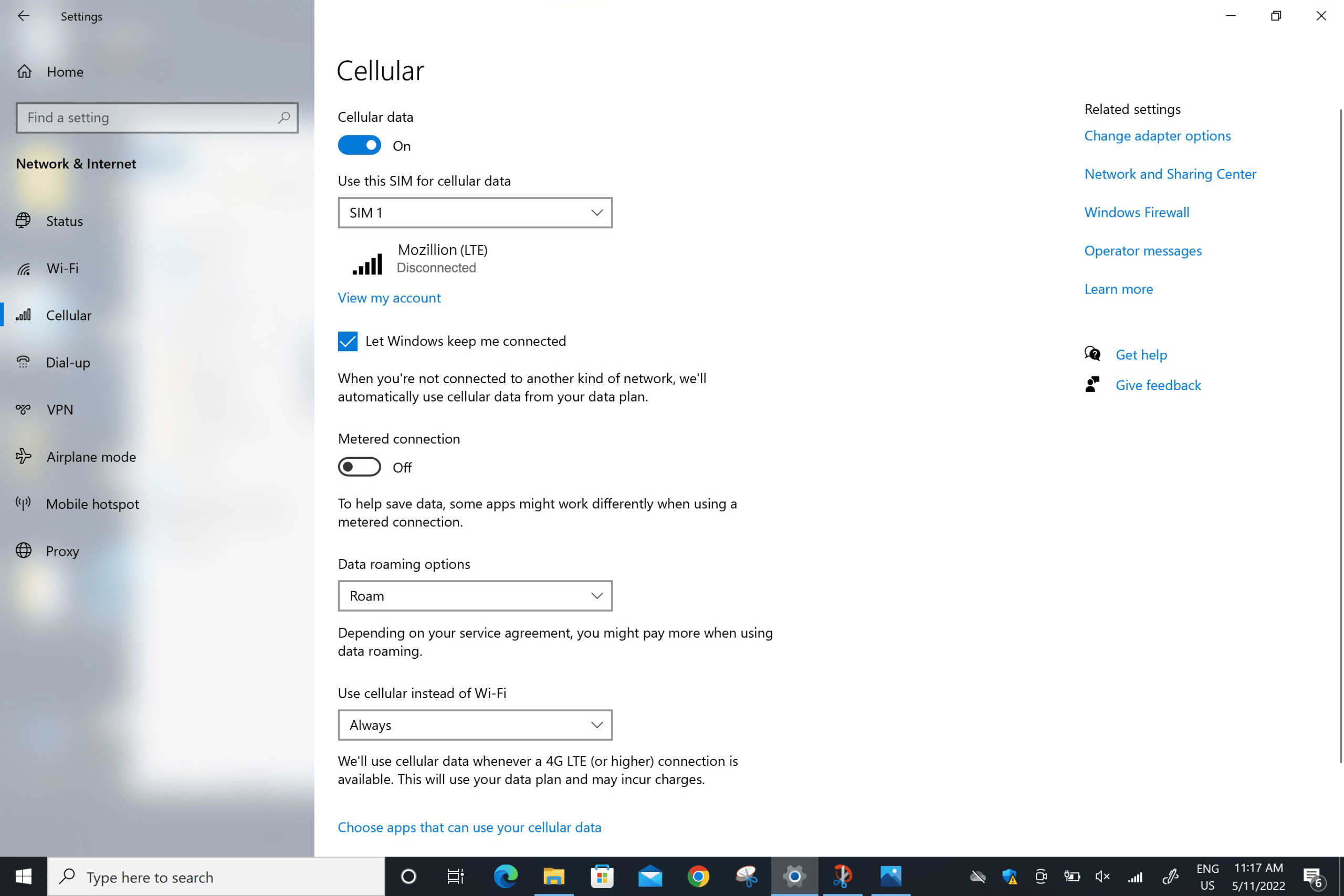
Your device is equipped with an eSIM:
Check now if an eSIM profile is installed on your device. Go to: Start > Settings > Networks & Internet > Cellular.
In the menu “Use this SIM for cellular data”:
– If a Mozillion Travel eSIM profile is installed, it will appear in the list. Select it (when the right one is selected, the name Mozillion will be displayed right under it).
– If no Mozillion Travel eSIM profile is installed, please follow instructions here to install a Mozillion Travel eSIM profile.
Once the Mozillion Travel eSIM profile is installed, go to the next step.
Step 2
Check eSIM Profile Activation
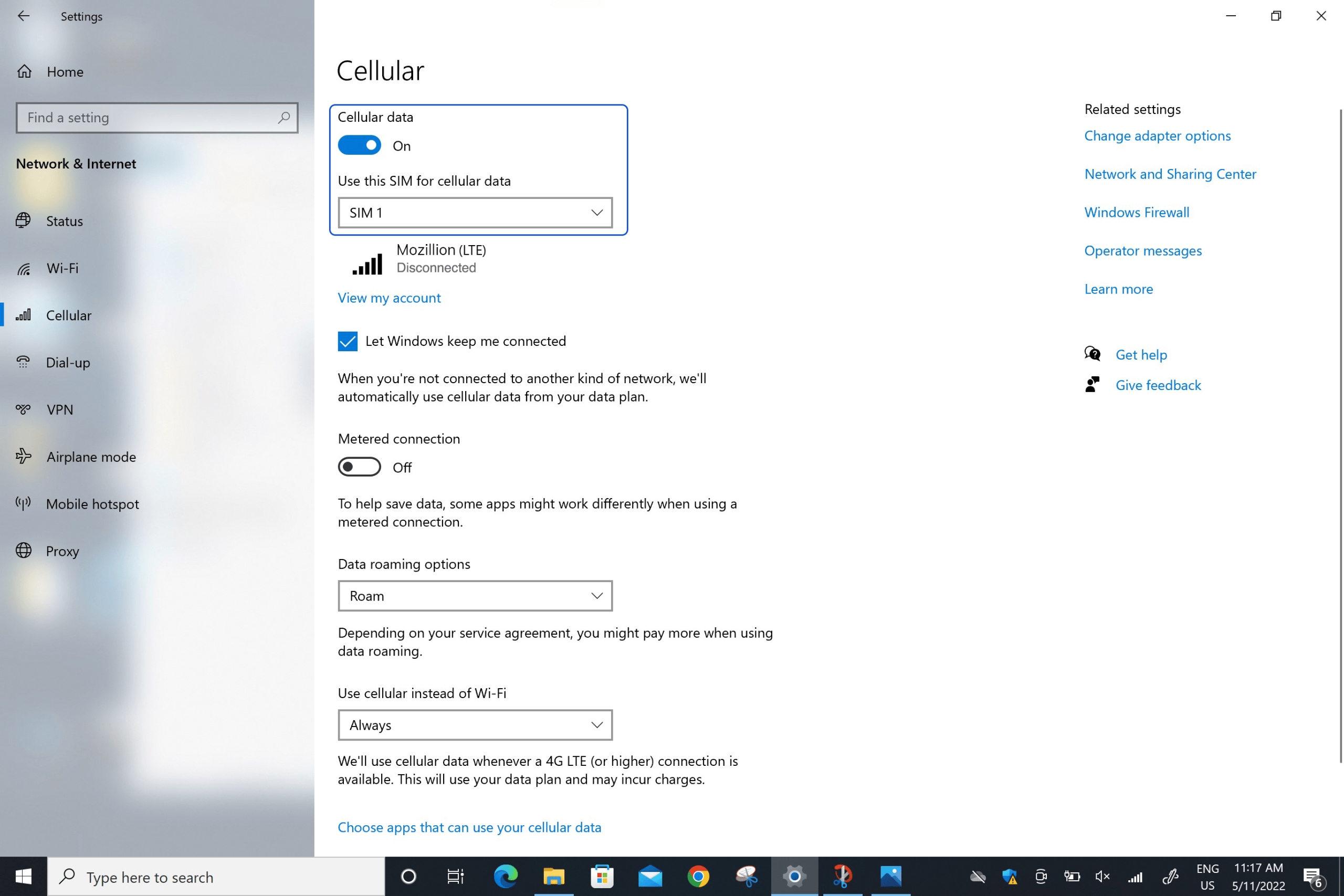
On the network flyout, ensure that:
Cellular (or Mobile) is Activated.
Wi-Fi is Deactivated.
Step 3
Apply Data to eSIM Profile
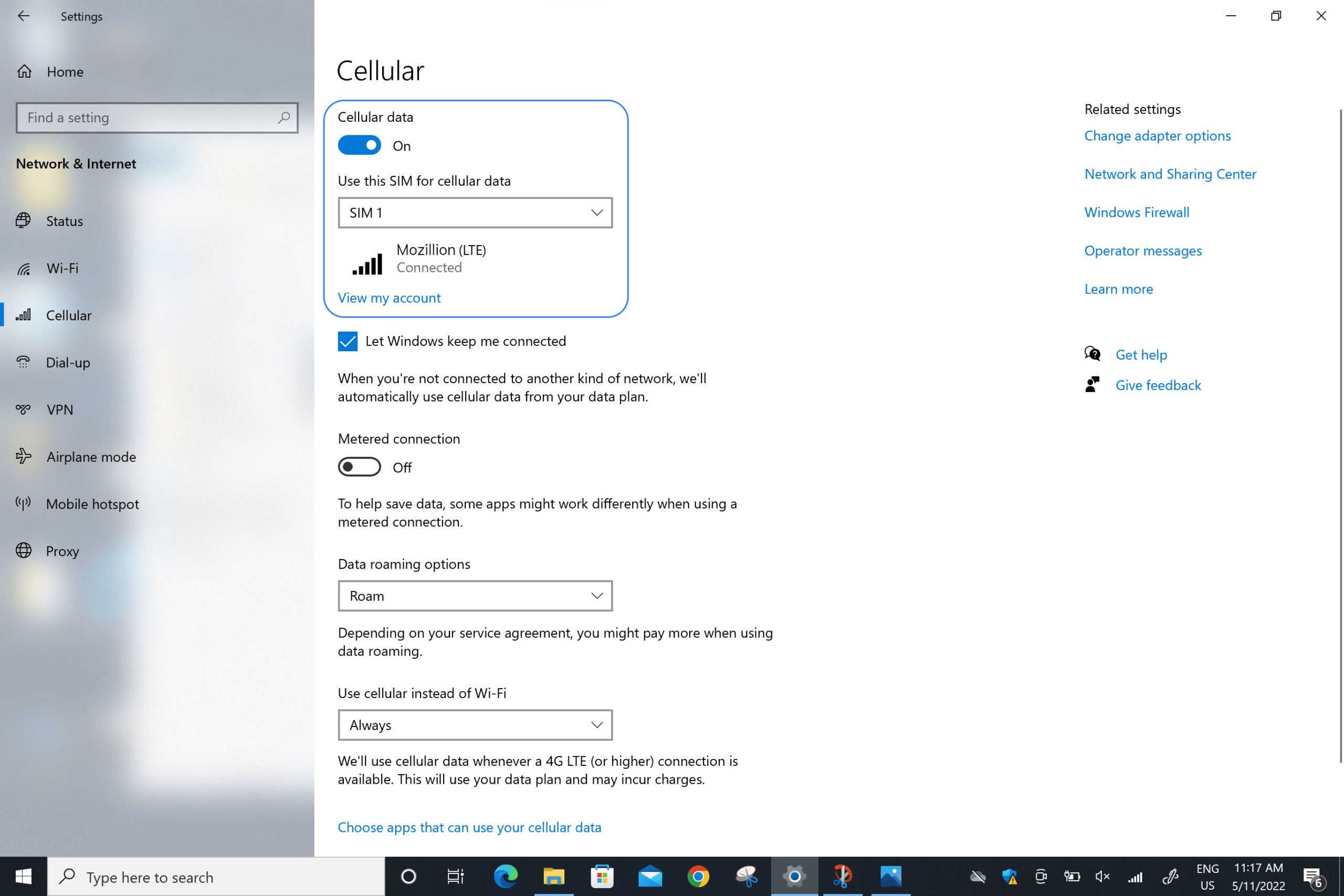
Make sure that Roam is set on the Data roaming options field:
Go to: Start > Settings > Networks & Internet > Cellular. In the field “Data Roaming Options”, choose Roam.
if you have carefully followed previous steps, your Mozillion Travel eSIM profile is now used for the cellular data connection (and NOT your physical SIM card if you have one, or any other eSIM profile). This means that you won’t have extra roaming costs as Mozillion Travel eSIM rates will be applied while using the Mozillion Travel eSIM cellular connectivity. In any case, always ensure that your Mozillion Travel eSIM profile is selected for cellular data to avoid extra roaming costs while abroad.
Step 4.1
Check APN configuration
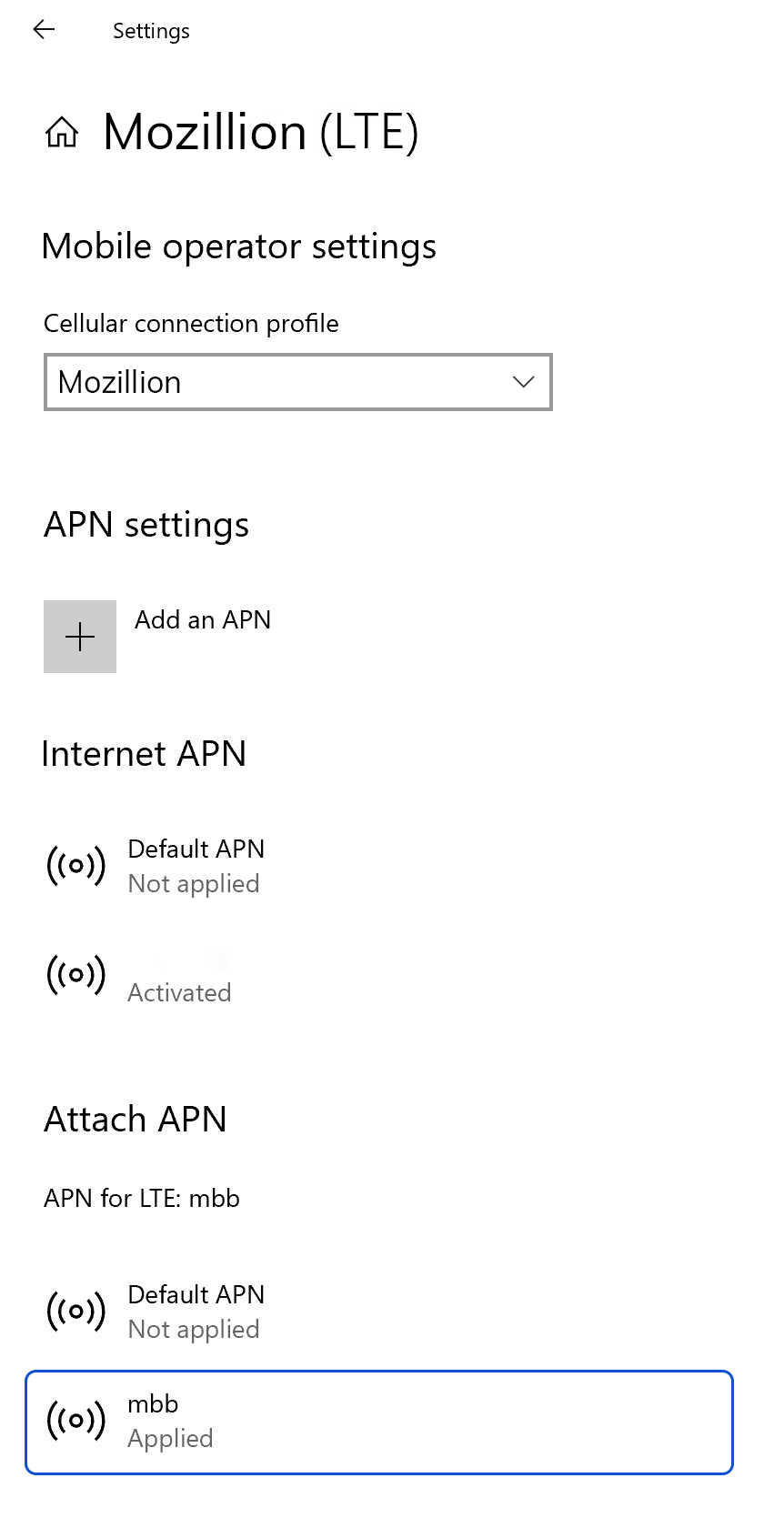
Now ensure that the APN (Access Point Name) is correctly set on your device.
Go to: Settings > Networks & Internet > Mobile, then Mobile Operator Settings.
If APN mbb appears on Internet APN or Attach APN lists, go directly to the step 5.
If the Mozillion Travel eSIM APN does not appear, go to the next step.
Step 4.2
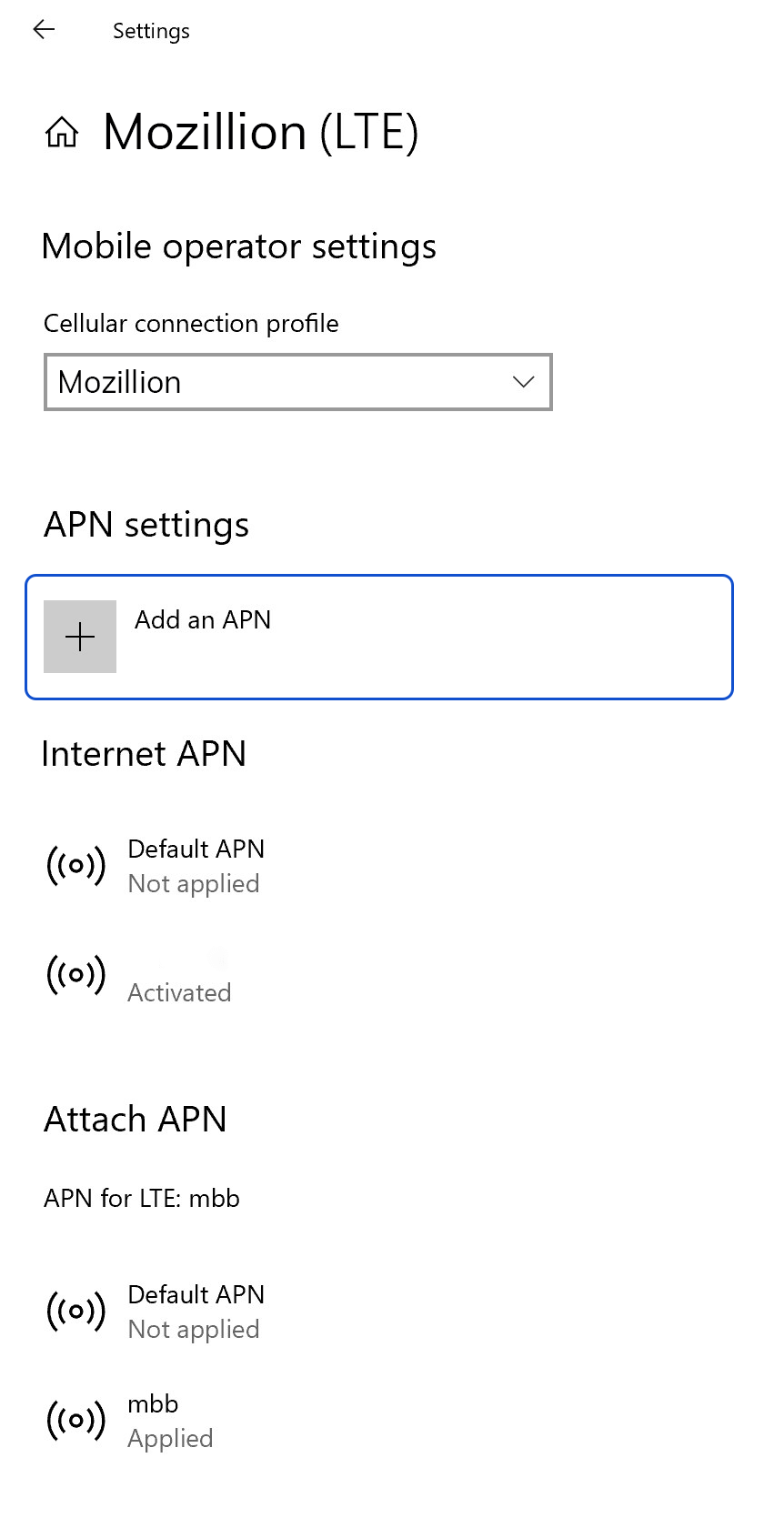
If the Mozillion Travel eSIM APN does not appear, click on “Add an APN” and fill in:
– Profile name: Mozillion
– APN: mbb
Check the box “Apply this profile” and click on Save.
Step 4.3
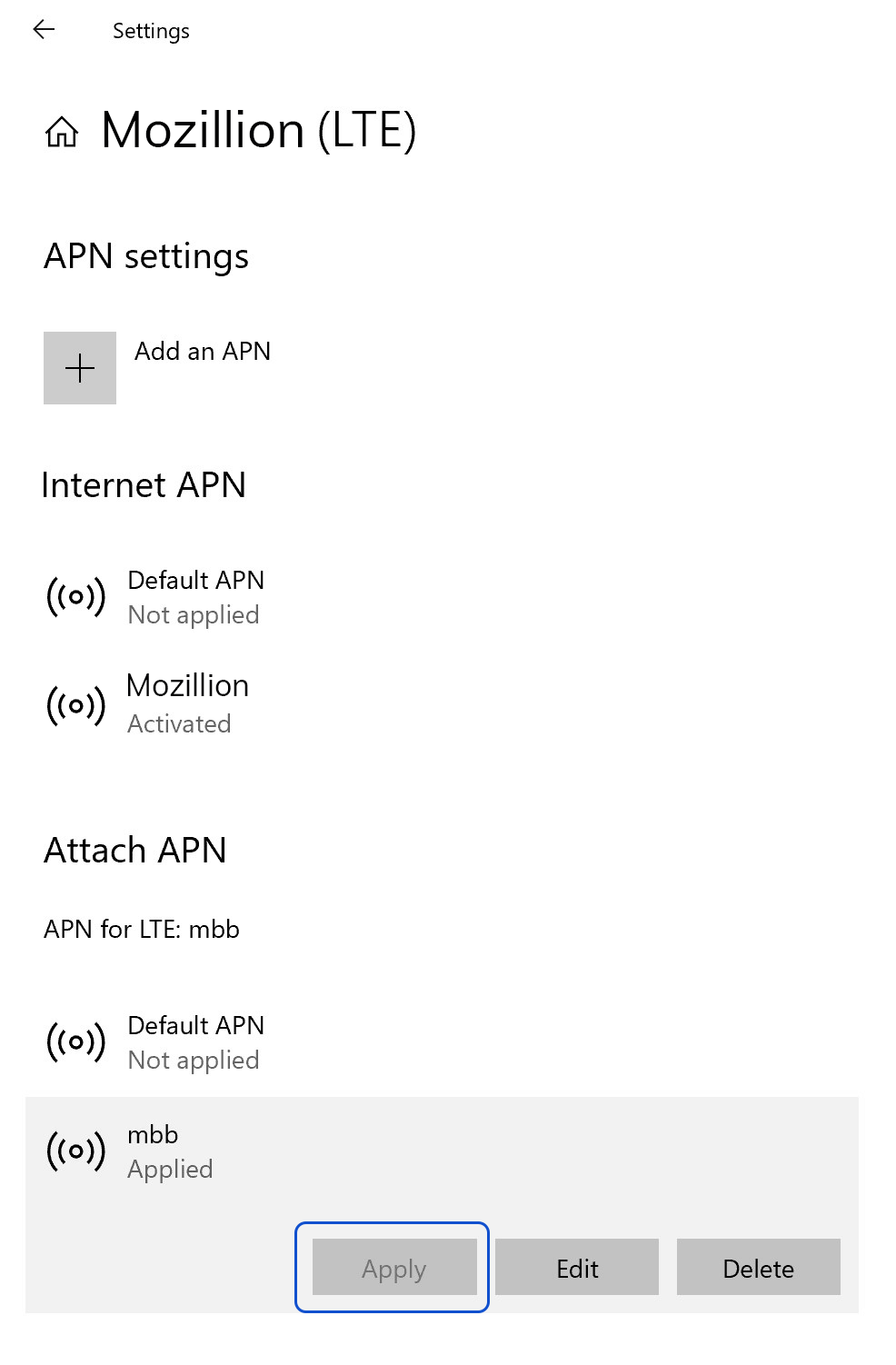
Now make sure that the Mozillion Travel eSIM APN appears as “Applied”.
If not, click on it to display more options and click on Apply button.
Step 5.1
Check Network Display
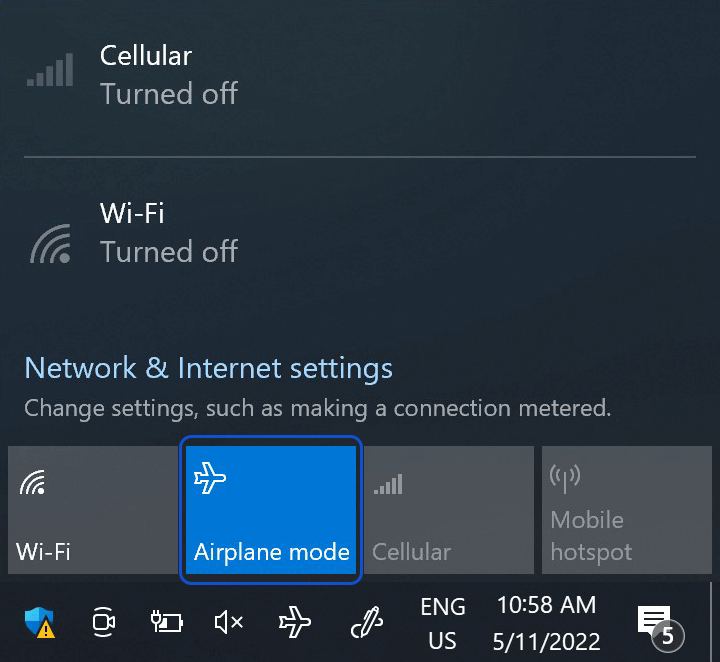
At this step, turn ON “flight mode” for 5 secondes and turn it OFF. This action will refresh the network connection from your device.
Step 5.2
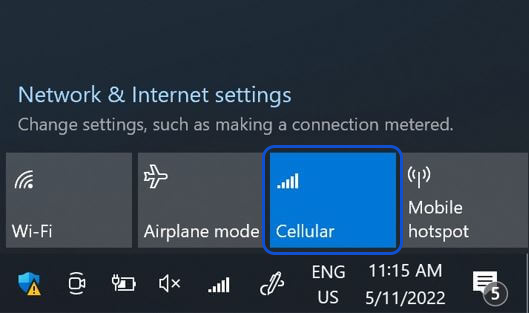
Once you are connected to the network, you will see a network icon appear on the bottom line.
Step 6
Final Check
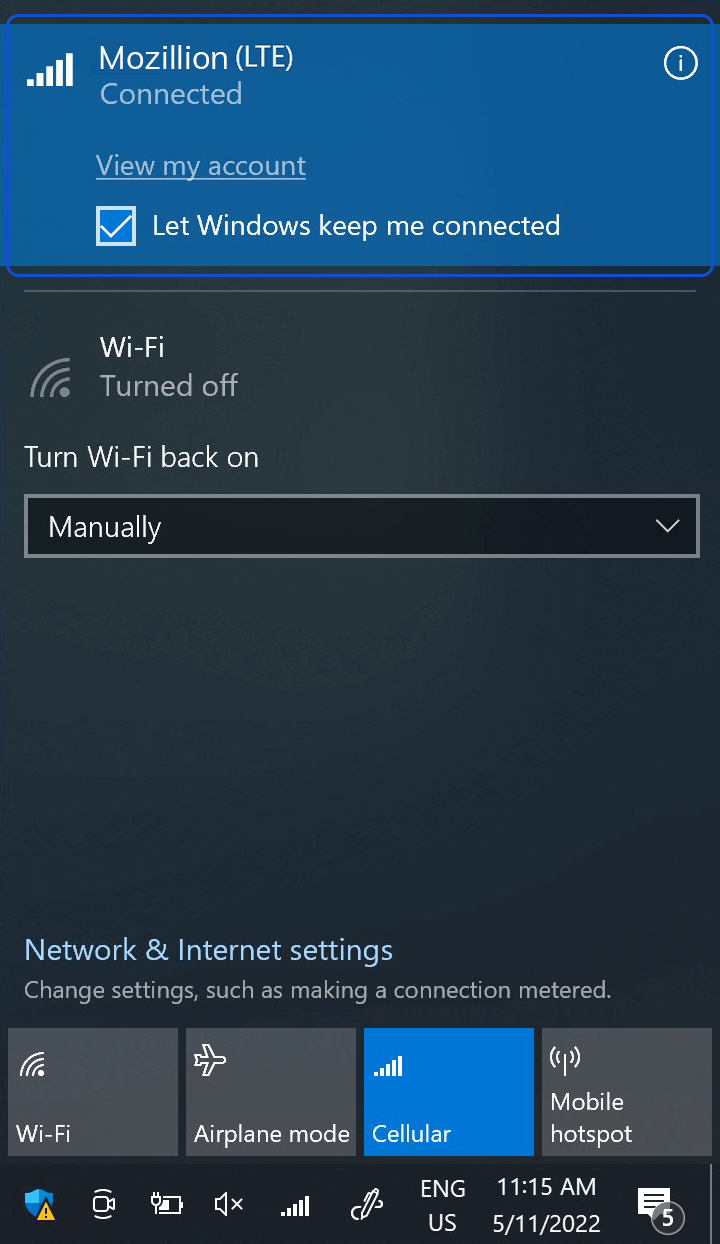
At this step, test your Travel eSIM connectivity by opening the network flyout and click on “View My Account”.
Or open a browser and go to mozillion.com/travel-sim
NB: In case you still have no network bars displayed, please contact our Customer Support for further help and provide the ICCID of your eSIM profile.