• Home
  • ›
  • Blog
  • ›
  • Guides
  • ›
  • How To Transfer Everything From Old iPhone to New
15 Sep 2026
All guides 3 min read
Guide

How To Transfer Everything From Old iPhone to New

By James, Mozillion Team•

Got yourself a new (or refurbished) iPhone? Here's how you transfer all your data from your current iPhone over to your new one.


This is the best method if you have both your old and your new iPhone available at the same time.


Follow these steps or watch the video below.

  1. 1Grab your new iPhone, turn it on and follow the on screen steps to select your language and region, then your display size.
  2. 2You'll get to the quick start screen next and at this point we grab our old iPhone.
  3. 3When you put both phones close together your old iPhone will show this popup that says 'set up new iPhone' - go ahead and press continue and let the two iPhone connect wirelessly.
  4. 4Next we'll get an image on the new device and the camera app will open on your old iPhone.
  5. 5Pick up your old iPhone and focus the camera over the image that is showing on the new iPhone and the two phones will pair.
  6. 6Press 'set up for me' on the old iPhone and let it get to work.
  7. 7You'll need to enter your old passcode if you had one.
  8. 8Keep your old iPhone close by while the new one activates and you'll need to go through the normal privacy setting options until you get to the transfer your data screen.
  9. 9Tap transfer from iPhone on your older device and the process will begin to finish up.
  10. 10You'll then be signed on to the newer device, tap continue and follow the remaining set up options on screen.
  11. 11 The transfer process will continue and you'll arrive on the transfer complete page once it has finished and everything has been moved over to your new iPhone.
  12. 12You can then choose to erase your old iPhone if you wish (if you're then going to sell it on Mozillion :)).
  13. 13The new iPhone will finish restoring and then reboot - after that you have successfully moved the data from iPhone to iPhone
  14. 14Be sure go to your settings on your new iPhone and check your Apple ID is showing at the top and you'll know it's been successful.

Note: If you only have your old iPhone available because you're waiting for your new one to arrive, then there is a different process you can use via iCloud which you'll find here.


Subscribe to our newsletter for more mobile phone help and tips.

Mozillion Apple Guides

Related Posts

Apple iPhone X review

Apple iPhone X review

The iPhone X ushered in a new era of iPhone design, making everything that came before it look dated. Its huge screen and updated features made it a sensation - but that was four years ago. Is it still worth buying today? Read our review.

Team 07 Aug 2026
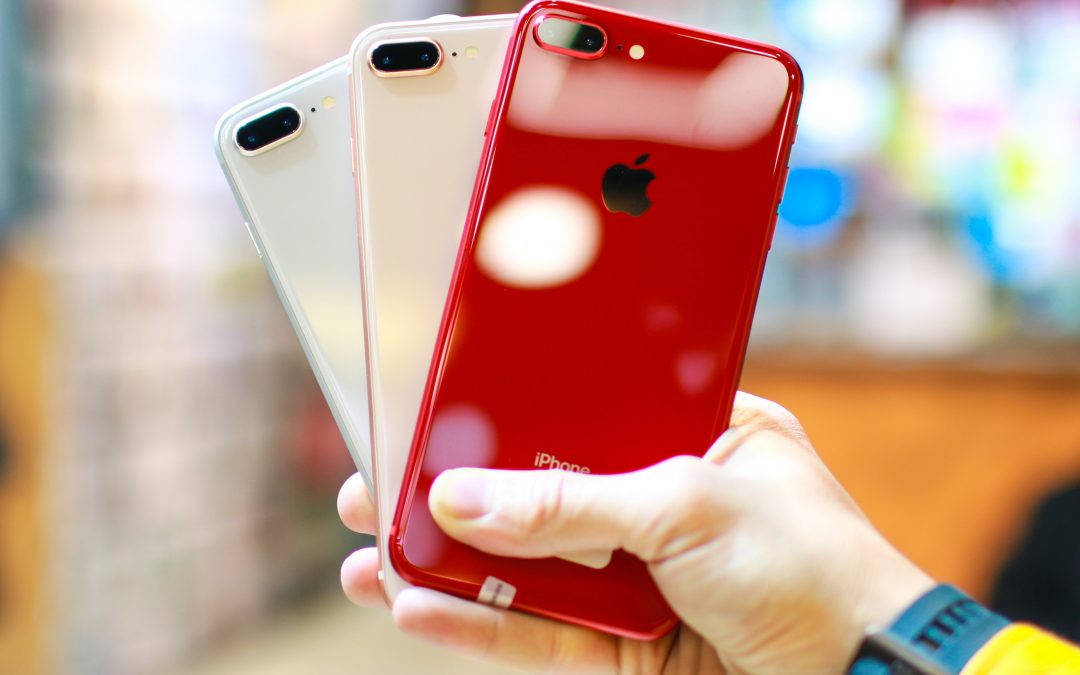
Apple iPhone 8 Plus review

Apple iPhone 8 Plus review

The iPhone 8 Plus was the last big iPhone with bezels above and below the screen. It’s better than an iPhone 8 or an iPhone 7 Plus, but it is getting on a bit. Today it’s comparatively cheap, but does that mean you should buy one? Read our iPhone 8 Plus review.

Team 07 Aug 2026

Apple iPhone XS Max review

Apple iPhone XS Max review

The iPhone XS Max was Apple’s first plus-sized flagship phone since the design changes introduced with the iPhone X. It’s a big, beautiful slab of a phone - but is it worth buying now it’s three generations old? Read our iPhone XS Max review.

Team 07 Aug 2026