Roam freely at the World Cup with The Football Fever Travel eSIM
The 2026 FIFA World Cup, the biggest in history, expanding across three nations and redefining global football on an unprecedented scale.
Team
27 Jul 2026
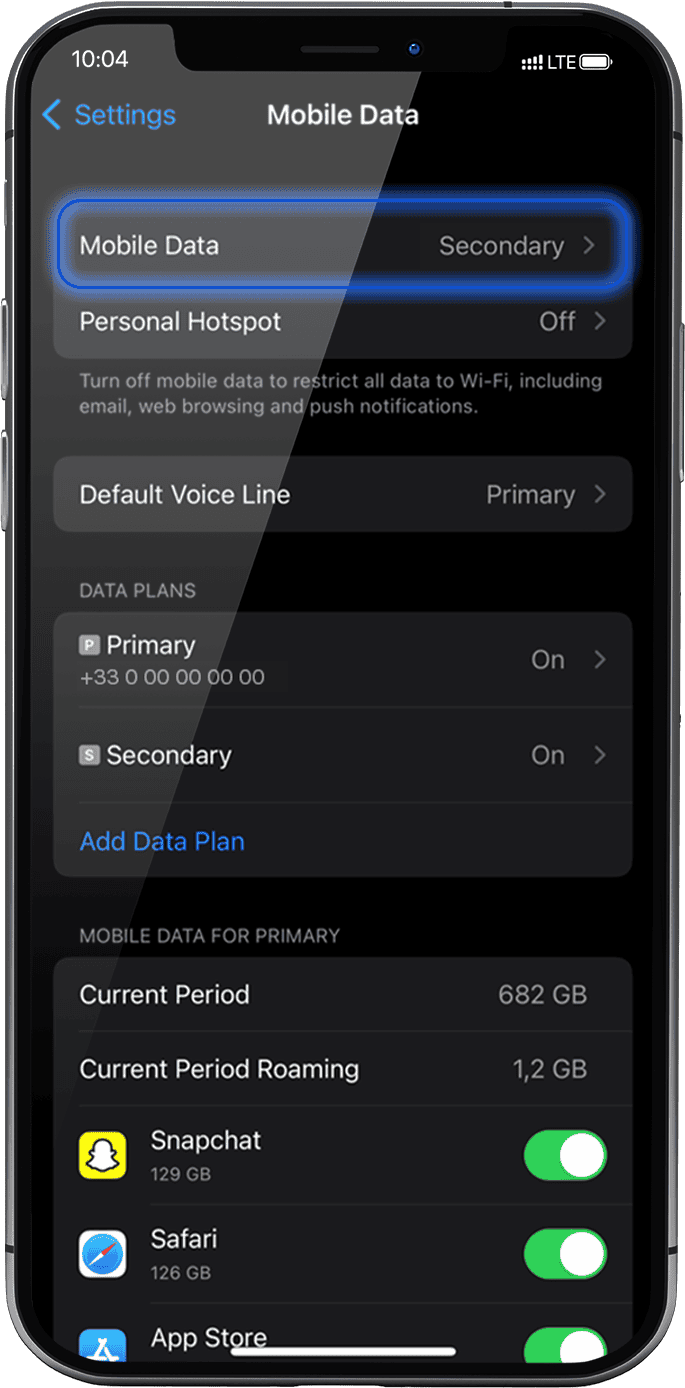
Go to: Settings > Mobile Data > under Data Plans: installed eSIM profile will appear as “Secondary” (or the name you renamed it).
If your eSIM profile is already installed, go to step 2.
If no eSIM is installed yet, go to Get started and follow instructions for your device.
If you deleted your eSIM profile, please follow instructions on this link.
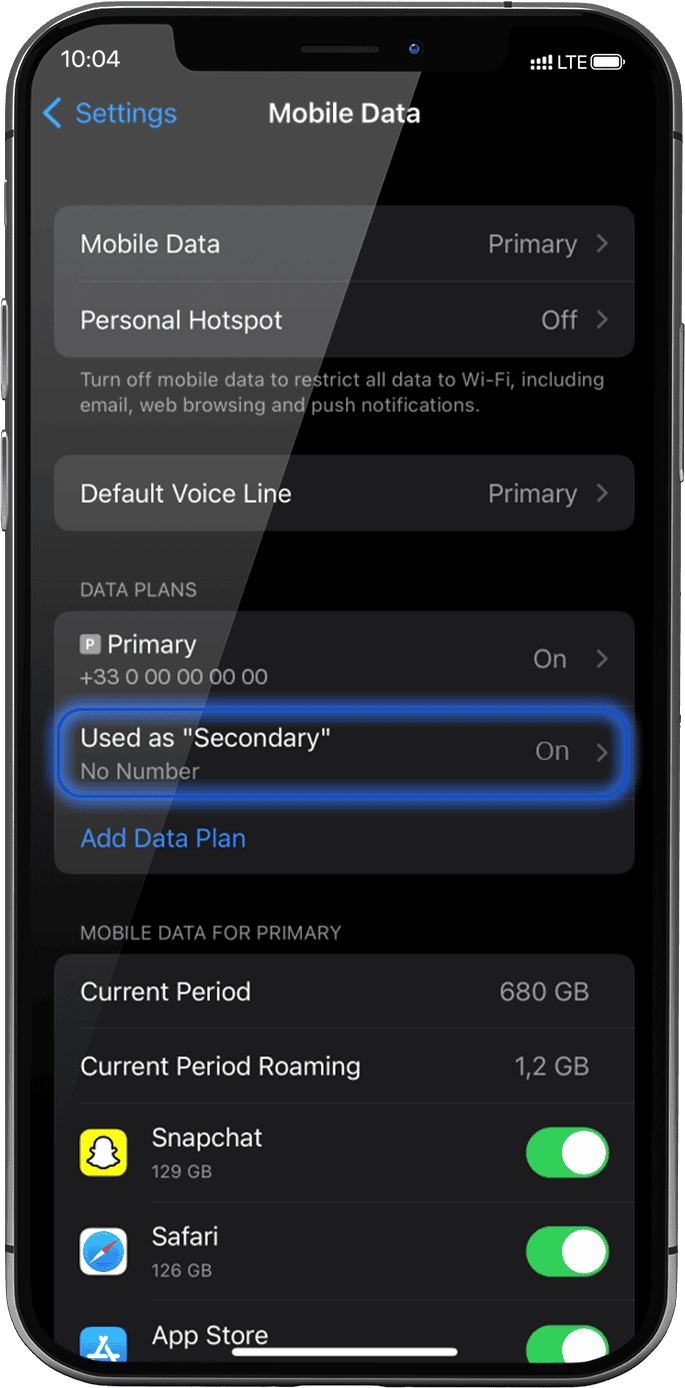
Check if your eSIM profile is installed on your iPhone.
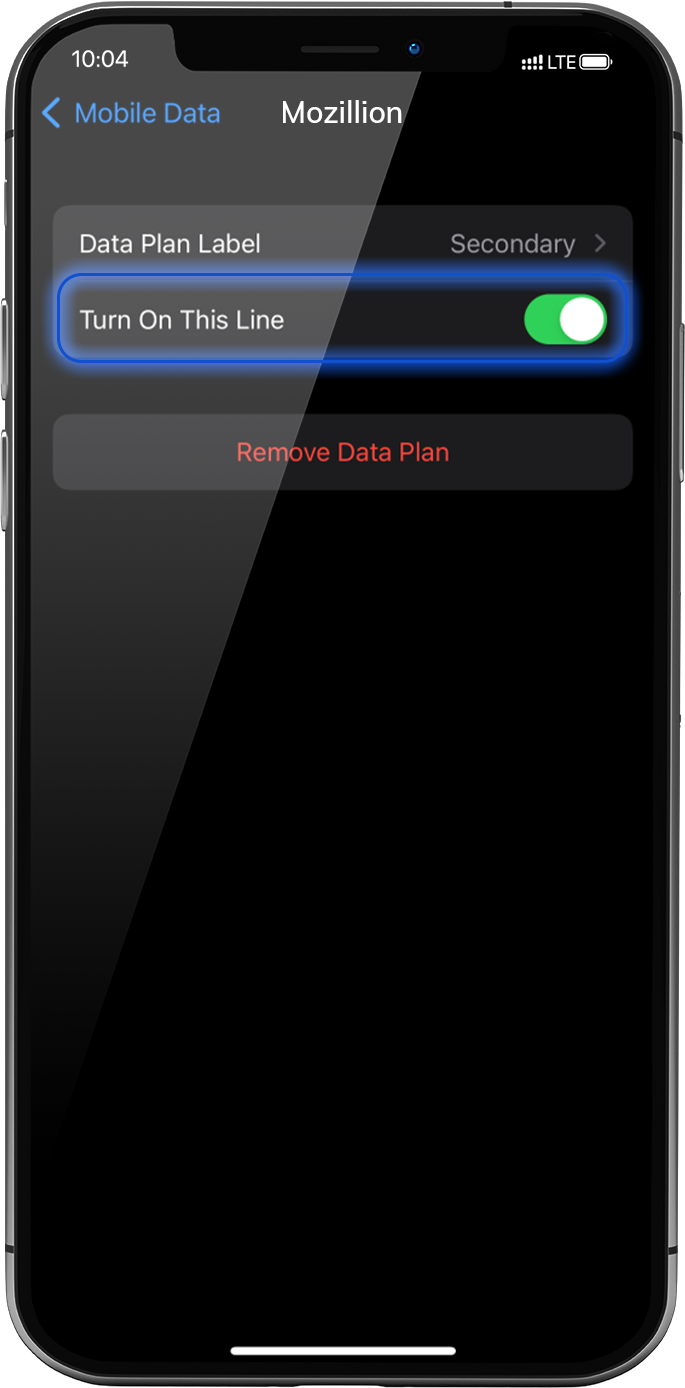
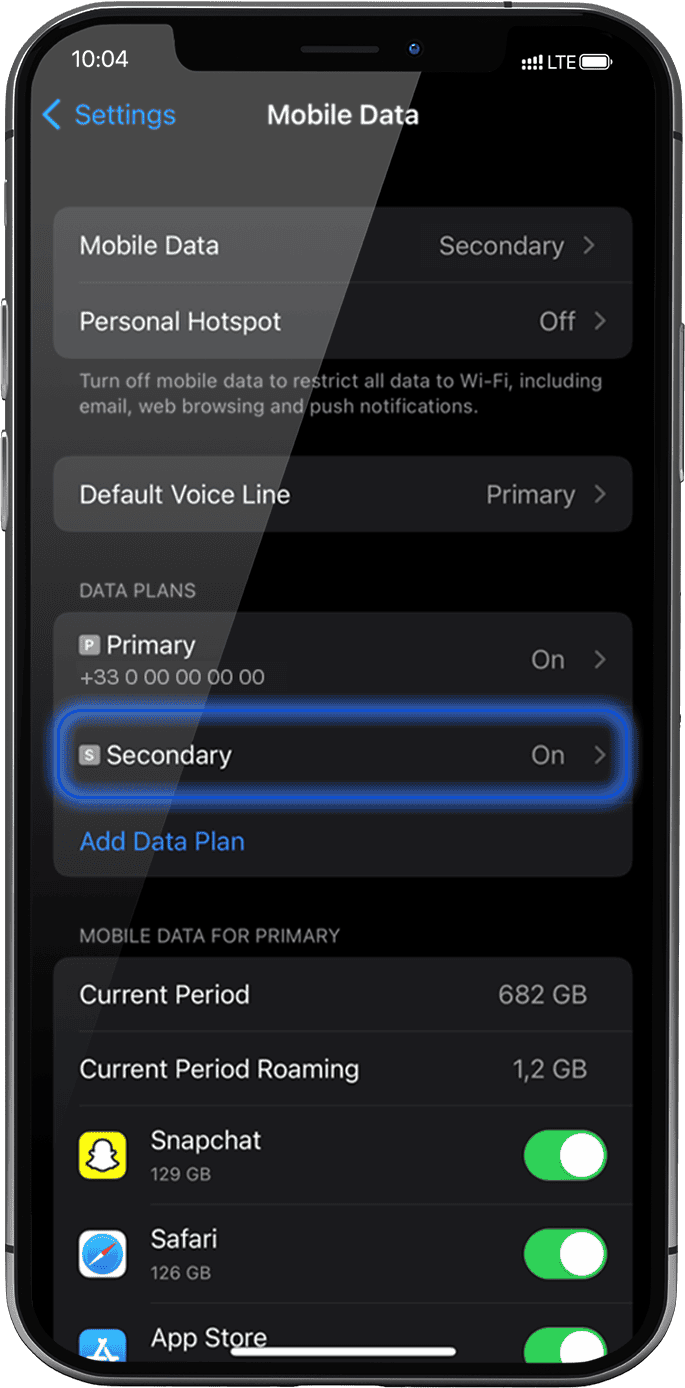
Go to: Settings >Mobile Data > under Data Plans, select the installed eSIM profile (or “secondary” or the name you renamed it)
Activate the profile by pressing the button Turn On This Line on the right.
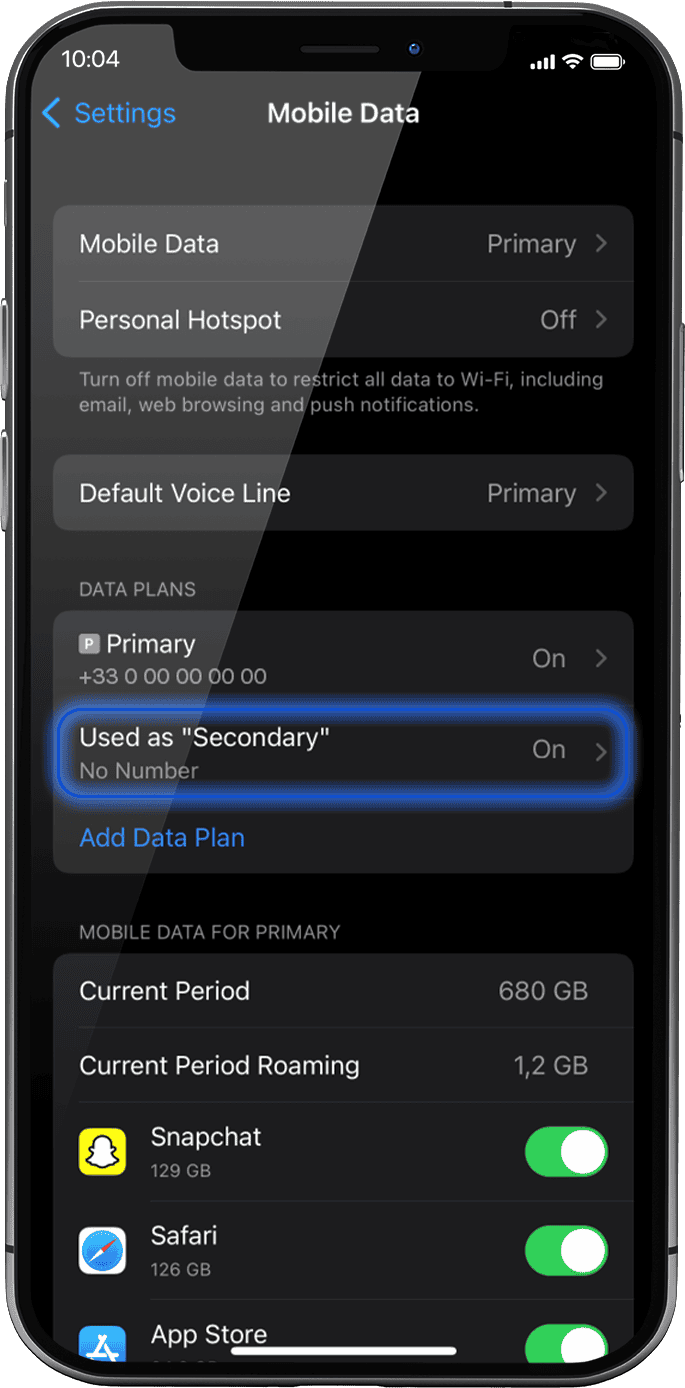
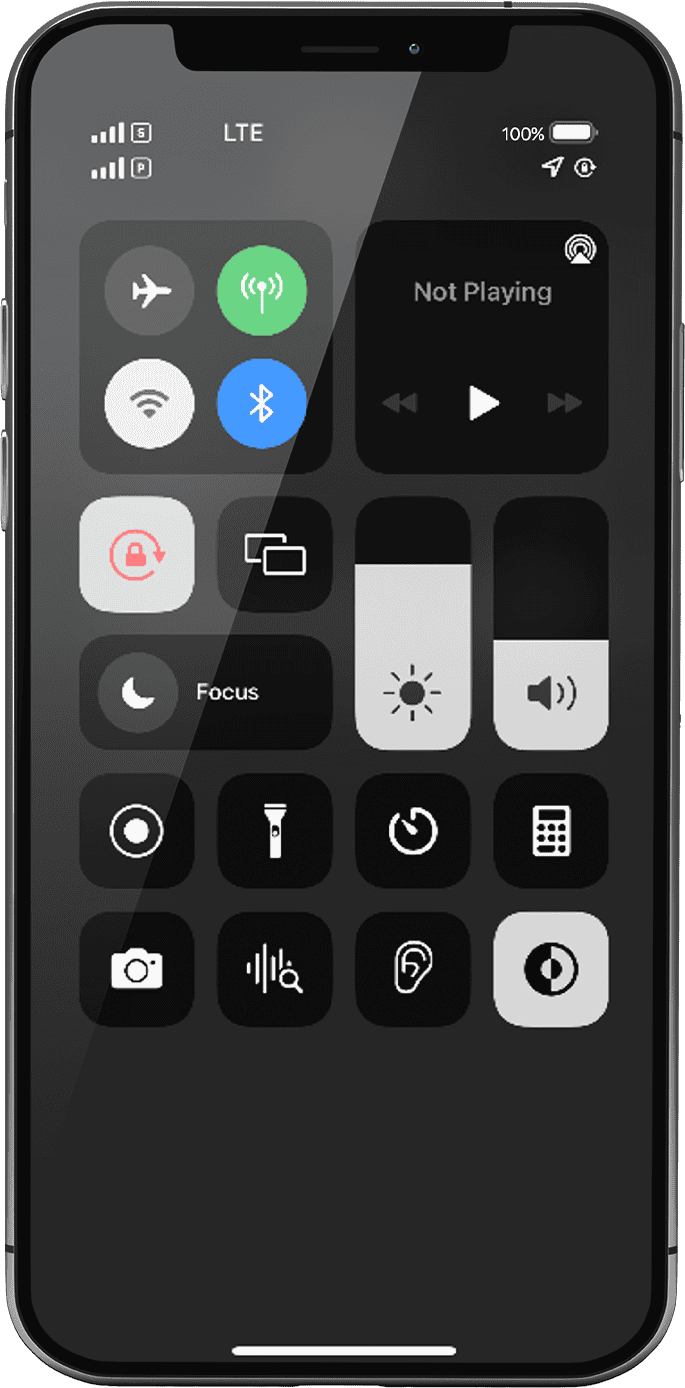
As soon as your profile is installed, a double network signal will appear at the top of your screen.
NB: the double network only appears if you have also a physical SIM card/eSIM profile for voice & SMS installed on your device. If there is no physical SIM card installed, only the stepped bars network will be displayed.
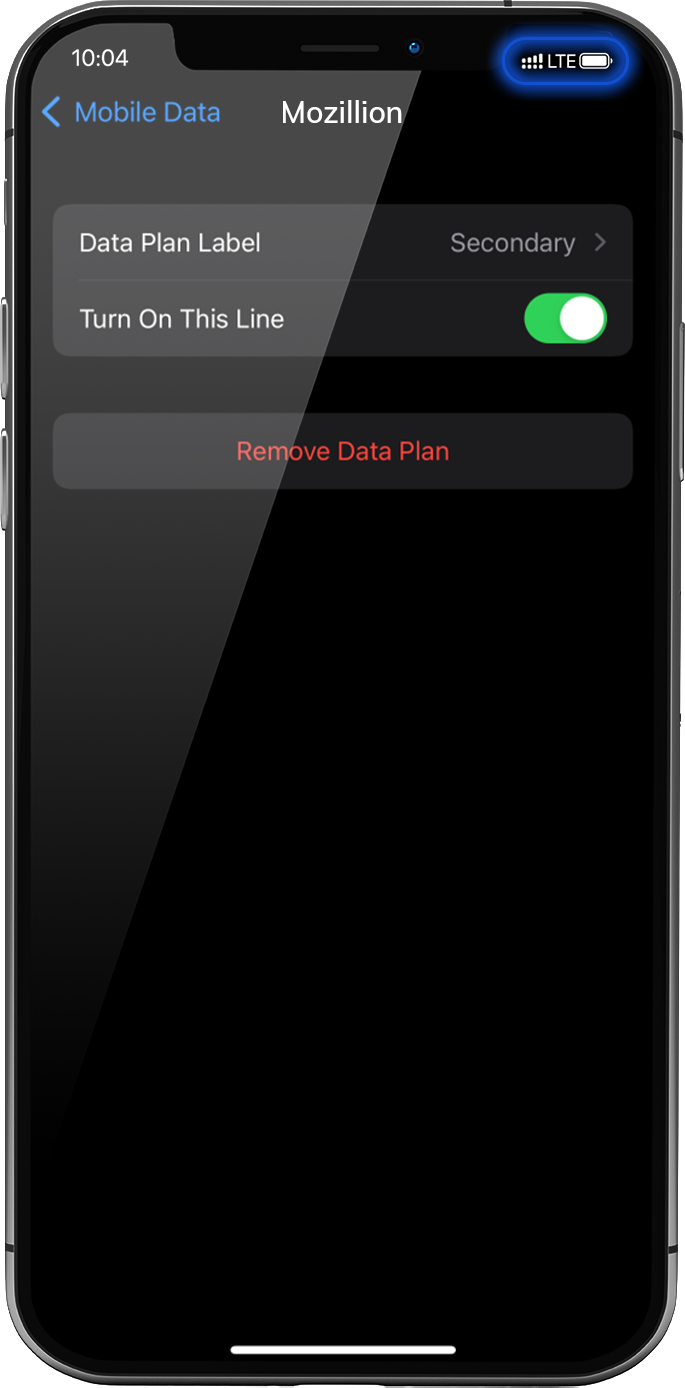
Cellular Data must be applied to the Mozillion Travel eSIM profile to access the Internet.
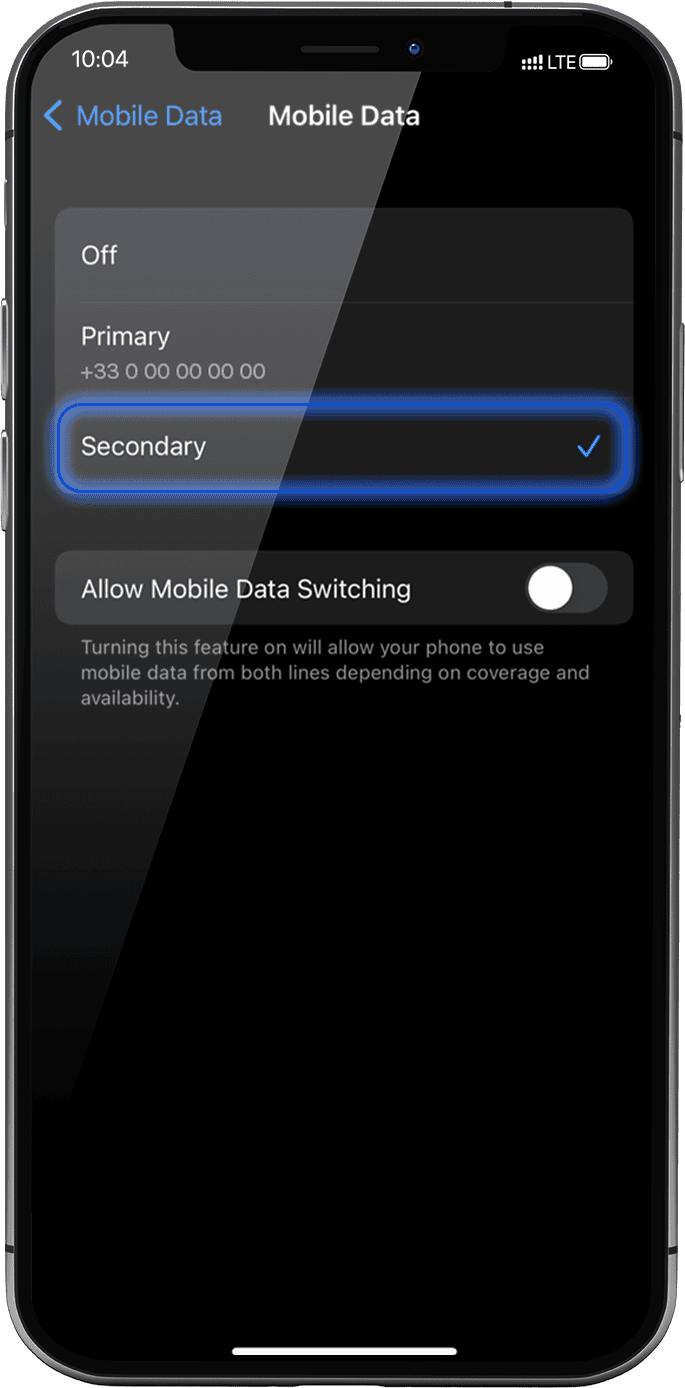
To do that, go to: Settings > Mobile Data > Mobile Data again, select Secondary:
the tick will appear in front of it when it is selected .
Important: When you have multiple SIM cards/eSIM profiles on your iPhone, it is not possible to activate cellular data on two data plans at the same time. You can only apply it to one at a time.
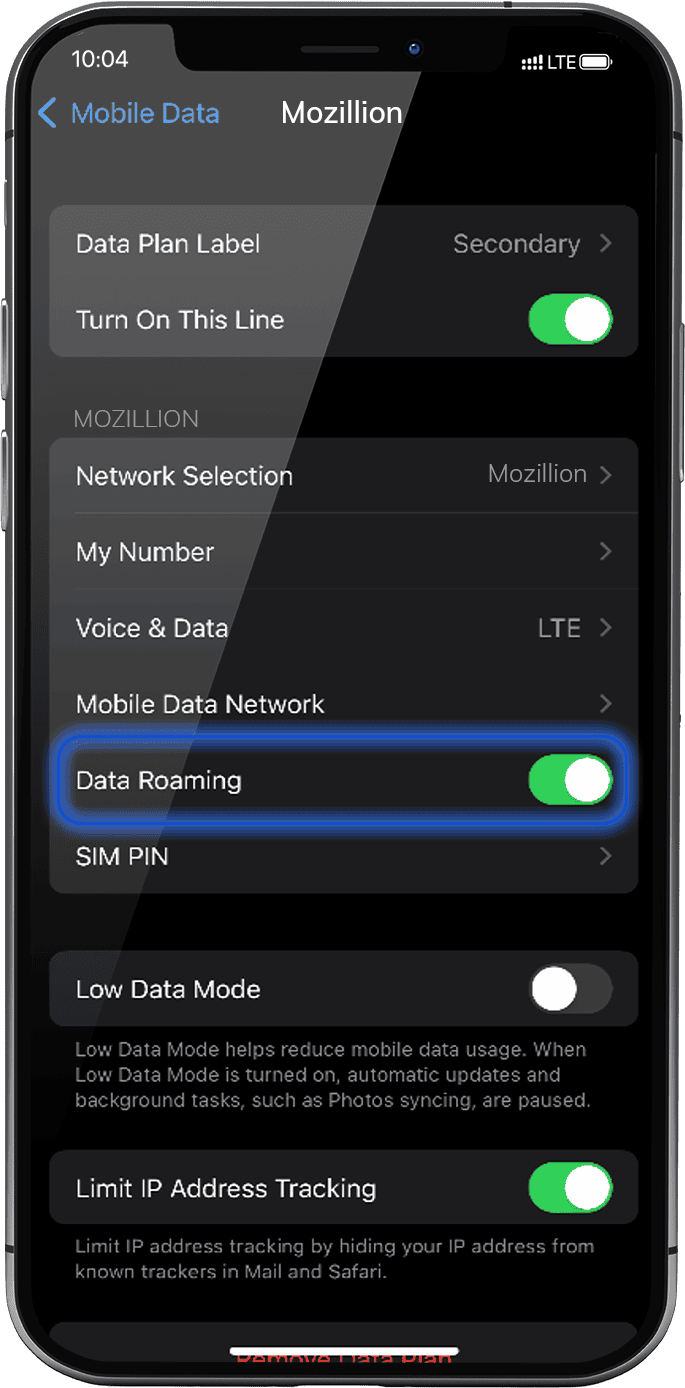
Now ensure that the Data roaming option to this line is activated.
Go to: Settings > Mobile Data > under Data plans, select the installed eSIM profile > Activate Data Roaming.
It will appear as “secondary” or under the name you renamed it.
NB: The Data roaming option is now activated only for your Mozillion Travel eSIM profile. This means that you won’t have extra roaming costs as only Mozillion Travel eSIM rates will be applied while using the Mozillion Travel eSIM cellular connectivity.
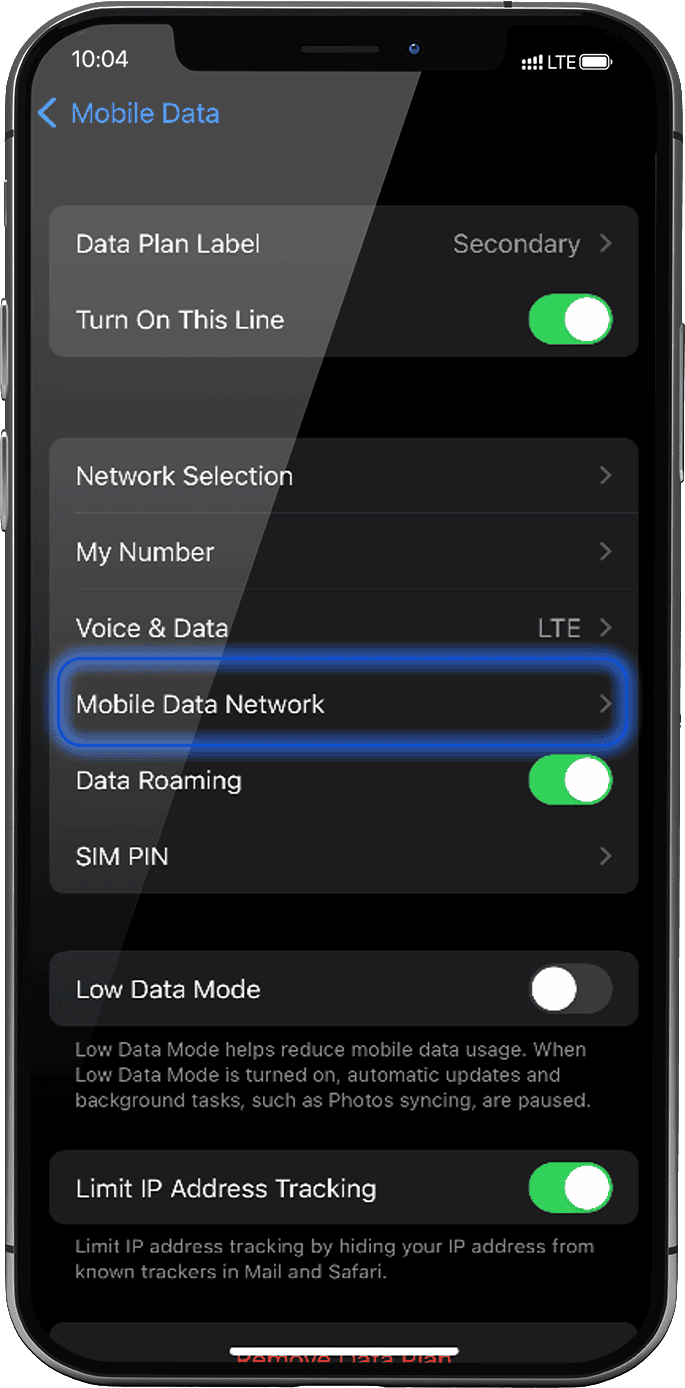
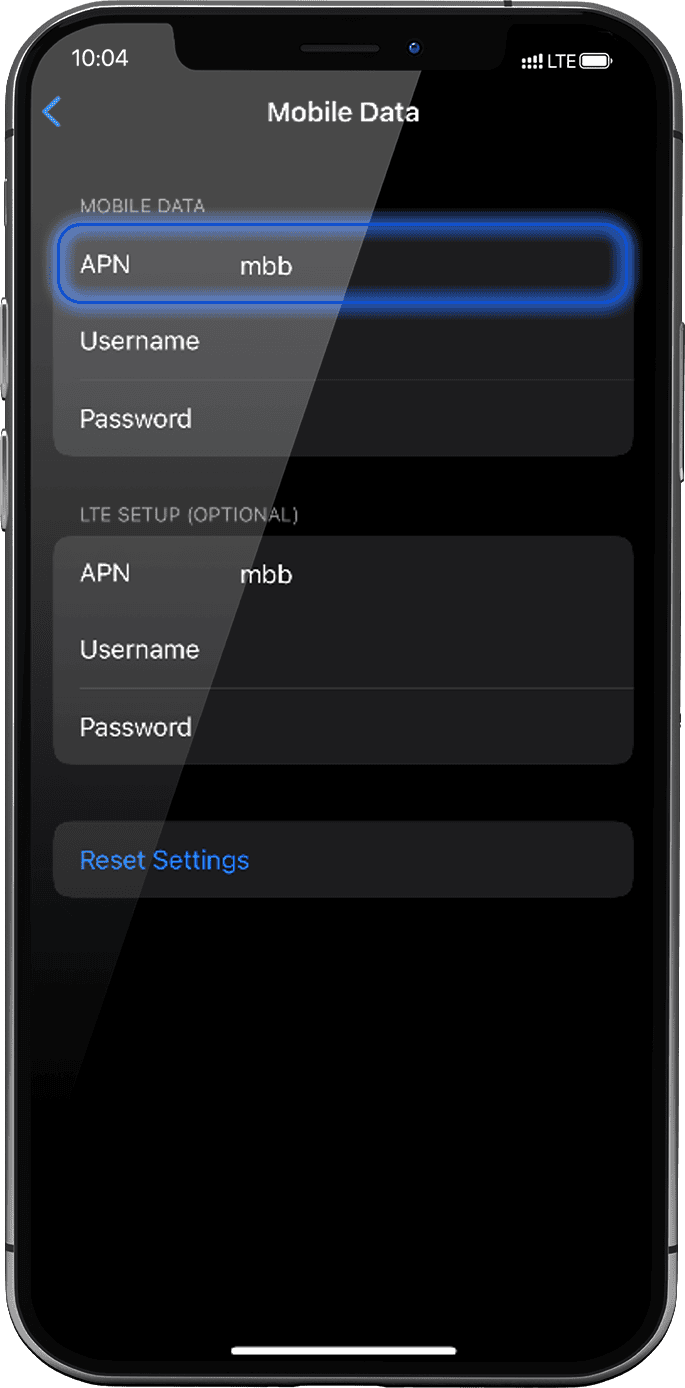
In the same screen, select Mobile Data Network in order to configure the APN (Access Point Name). In the APN field, make sure that mbb is specified. If not, type it in the field.
Display the networks/shortcuts page by sliding from the top right hand corner of your screen to the center.
Turn ON “flight mode” for 5 seconds and turn it OFF. This action will refresh the network connection from your device.
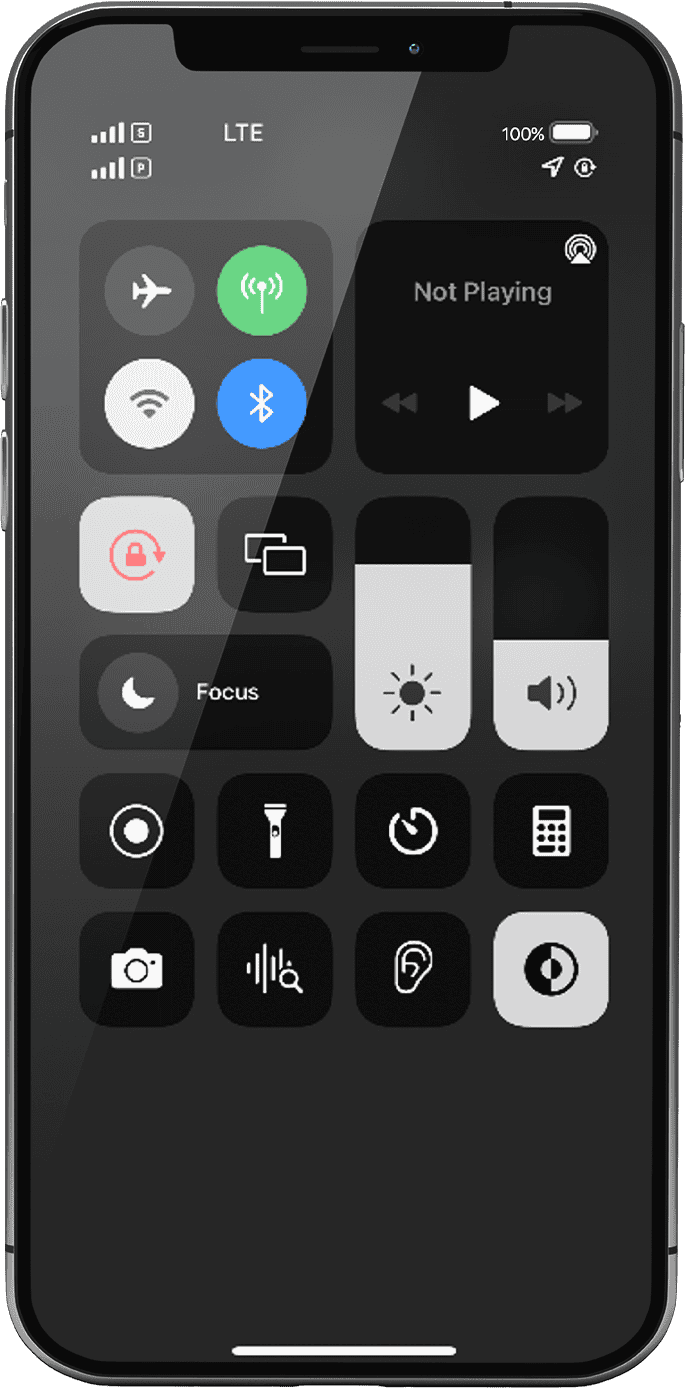
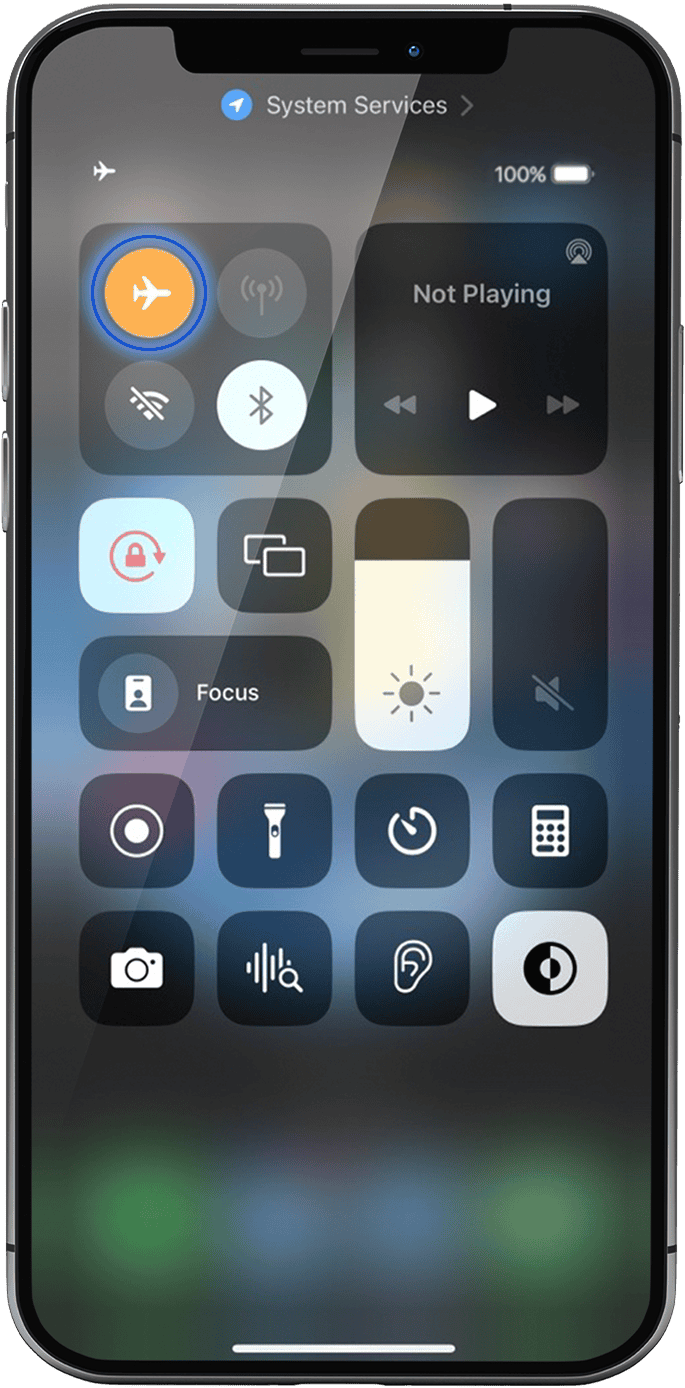
Once Flight mode off, you will see 1 or 2 networks appear:
The network at the top is always the eSIM/SIM card you applied data to: following previous steps, this must be your Mozillion Travel eSIM network.
NB: The other network right under it represents the other possible line in your phone (for instance: your primary line with the physical SIM card if you have inserted one in your device)
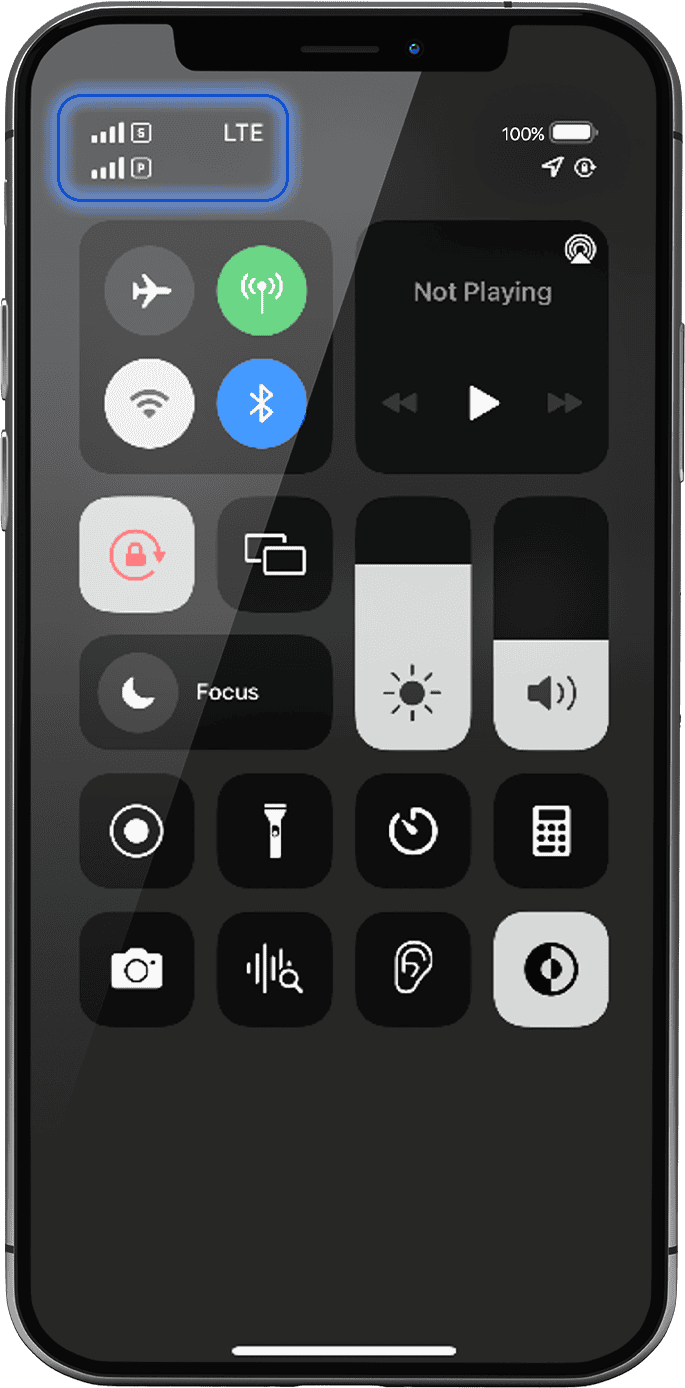
NB: If no network bar is displayed yet, please contact Customer Support for further help and provide the ICCID of your eSIM profile (Settings > General > Information > ICCID)
The 2026 FIFA World Cup, the biggest in history, expanding across three nations and redefining global football on an unprecedented scale.

Mountains, beaches, ancient towns, markets, and some of the best food in the world – Vietnam has everything, and this backpacker route from south to north with 10 destinations takes you through all of it.

Are you planning your trip to Europe? Thinking of spending days walking along beaches on the Amalfi coast, looking around the Sagrada Familia in Barcelona or catching the Northern lights in Iceland? Well, Mozillion’s European Regional eSIMs will offer you effortless connectivity throughout your trip across up to 55 countries with just one simple download.