15 Sep 2026
All guides 2 min read
Guide

How To Scan a Document with an iPhone

By James, Mozillion Team•

Did you know you can use your iPhone as a scanner to scan documents and images? Here's how.


Follow these steps or watch the video below.

  1. 1Head into your Notes app on your phone - this is where all your iPhone's scanner features live.
  2. 2Once you're there, tap the pen icon in the bottom corner to start a new note
  3. 3In the new note you have a few icons appear mid way down the screen. Tap the camera icon and we'll then see some extra options.
  4. 4Press scan document to get the scanning process started.
  5. 5Grab the document you want to scan (works best if it is placed on a flat surface) and focus it inside the camera frame.
  6. 6The document will be surrounded by a yellow box once your iPhone has recognised it.
  7. 7If your iPhone camera doesn't automatically recognise the document after a couple of seconds, you can also press the circle capture button to capture it manually.
  8. 8If you have a document with several pages just follow this capture process with each page one after the other.
  9. 9When you've finished capturing all the pages, just press the save icon.
  10. 10The documents will then appear in your notes and you can add any text you'd like underneath or edit the name of the file.
  11. 11If you want to delete a page, tap the toolbar on the top right and you'll see three dots appear on the pages - tap that and along with several other options you'll also see delete page.
  12. 12Your scanned documents can then either be viewed on your phone or you can share or email them as a PDF document.

Subscribe to our newsletter for more mobile phone help and tips.

Mozillion Apple Guides

Related Posts

Apple iPhone X review

Apple iPhone X review

The iPhone X ushered in a new era of iPhone design, making everything that came before it look dated. Its huge screen and updated features made it a sensation - but that was four years ago. Is it still worth buying today? Read our review.

Team 07 Aug 2026
Apple iPhone 8 Plus review

Apple iPhone 8 Plus review

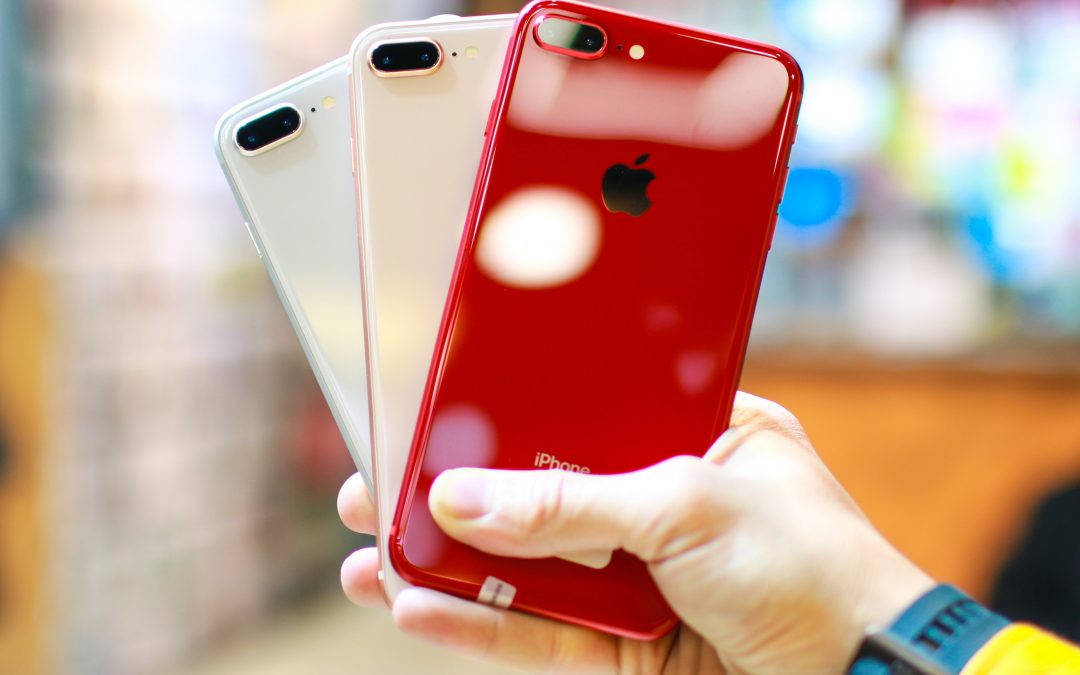
The iPhone 8 Plus was the last big iPhone with bezels above and below the screen. It’s better than an iPhone 8 or an iPhone 7 Plus, but it is getting on a bit. Today it’s comparatively cheap, but does that mean you should buy one? Read our iPhone 8 Plus review.

Team 07 Aug 2026

Apple iPhone XS Max review

Apple iPhone XS Max review

The iPhone XS Max was Apple’s first plus-sized flagship phone since the design changes introduced with the iPhone X. It’s a big, beautiful slab of a phone - but is it worth buying now it’s three generations old? Read our iPhone XS Max review.

Team 07 Aug 2026