• Home
  • ›
  • Blog
  • ›
  • Guides
  • ›
  • How To Clear Your Samsung Galaxy Phone Cache
14 Sep 2026
All guides 2 min read
Guide

How To Clear Your Samsung Galaxy Phone Cache

By James, Mozillion Team•

Keep your phone healthy - here's how to clear an app's cache on a Samsung Galaxy.


Follow these simple steps or watch our video below.

  1. 1Head into your phone's settings app.
  2. 2Once you're there, find the section that says apps and tap to open.
  3. 3Scroll down until you find the app with a cache you'd like to clear.
  4. 4Scroll down until you see storage and tap that.
  5. 5You'll see that next to Cache it will have some listed data that is stored on your phone - to clear it tap the button on the bottom right that says clear cache.
  6. 6You know it's cleared when the cach data drops to zero.
  7. 7Once you're done, simply swipe up from the bottom of the screen.

Subscribe to our newsletter for more mobile phone help and tips.

Mozillion Samsung Guides

Related Posts

Apple iPhone X review

Apple iPhone X review

The iPhone X ushered in a new era of iPhone design, making everything that came before it look dated. Its huge screen and updated features made it a sensation - but that was four years ago. Is it still worth buying today? Read our review.

Team 07 Aug 2026
Apple iPhone 8 Plus review

Apple iPhone 8 Plus review

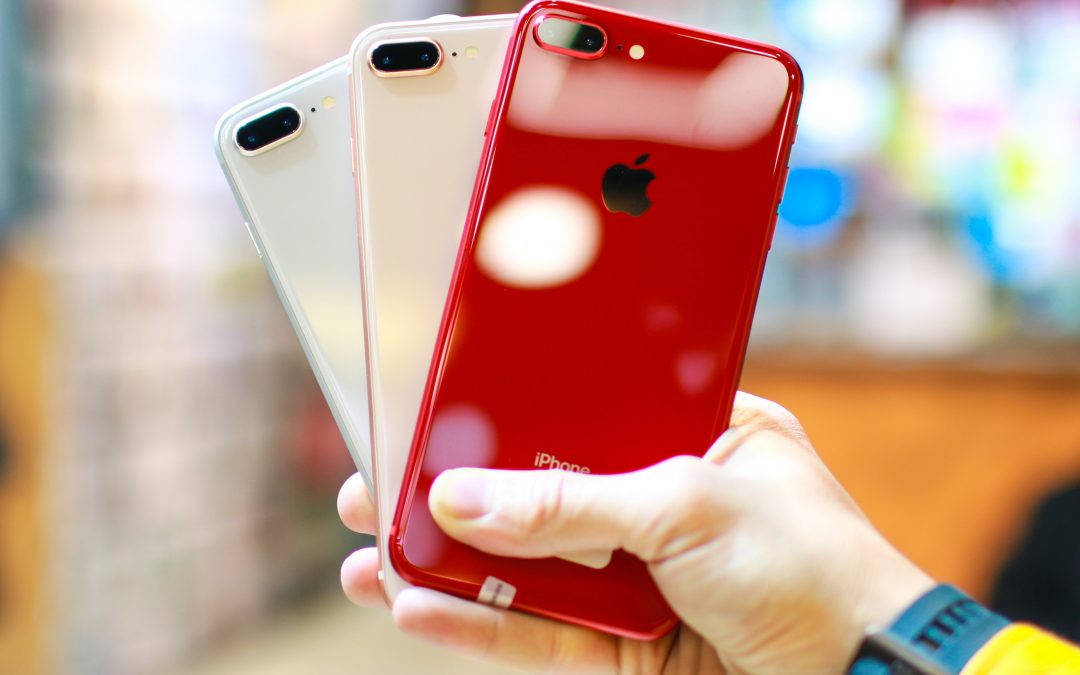
The iPhone 8 Plus was the last big iPhone with bezels above and below the screen. It’s better than an iPhone 8 or an iPhone 7 Plus, but it is getting on a bit. Today it’s comparatively cheap, but does that mean you should buy one? Read our iPhone 8 Plus review.

Team 07 Aug 2026

Apple iPhone XS Max review

Apple iPhone XS Max review

The iPhone XS Max was Apple’s first plus-sized flagship phone since the design changes introduced with the iPhone X. It’s a big, beautiful slab of a phone - but is it worth buying now it’s three generations old? Read our iPhone XS Max review.

Team 07 Aug 2026