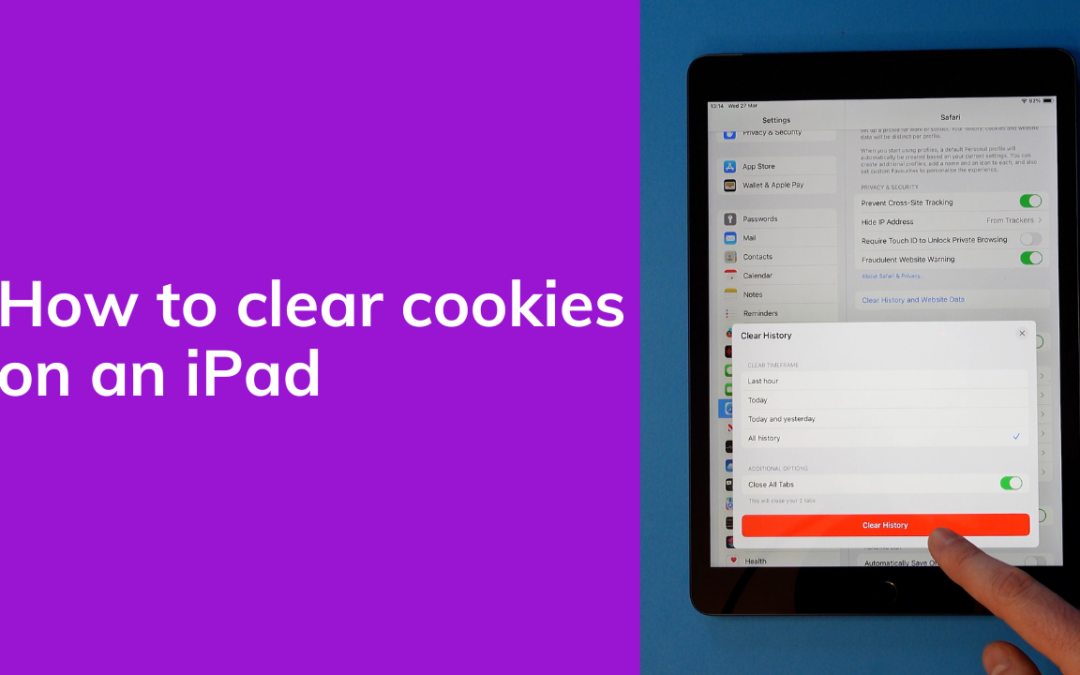
How To Clear Cookies on an iPad
Here's how to clear the browser cookies on an iPad. Follow these simple steps or watch our handy video.
Team
14 Sep 2026
Here's how to clear the cache of an app on an iPad. Apps store data which can take up valuable storage space, if you want to start fresh with an app here's what you need to do.
Follow these simple steps or watch our handy video below.
Subscribe to our newsletter for more mobile phone help and tips.
Here's how to clear the browser cookies on an iPad. Follow these simple steps or watch our handy video.
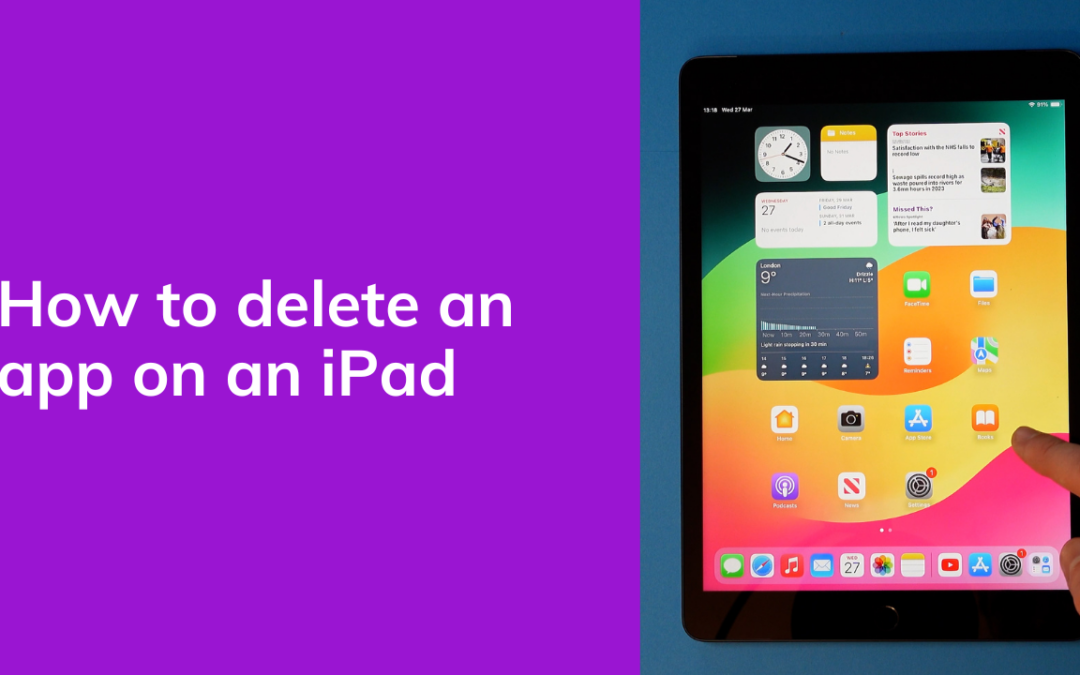
Here's how to delete an app on an iPad. Follow these simple steps or watch our handy video.
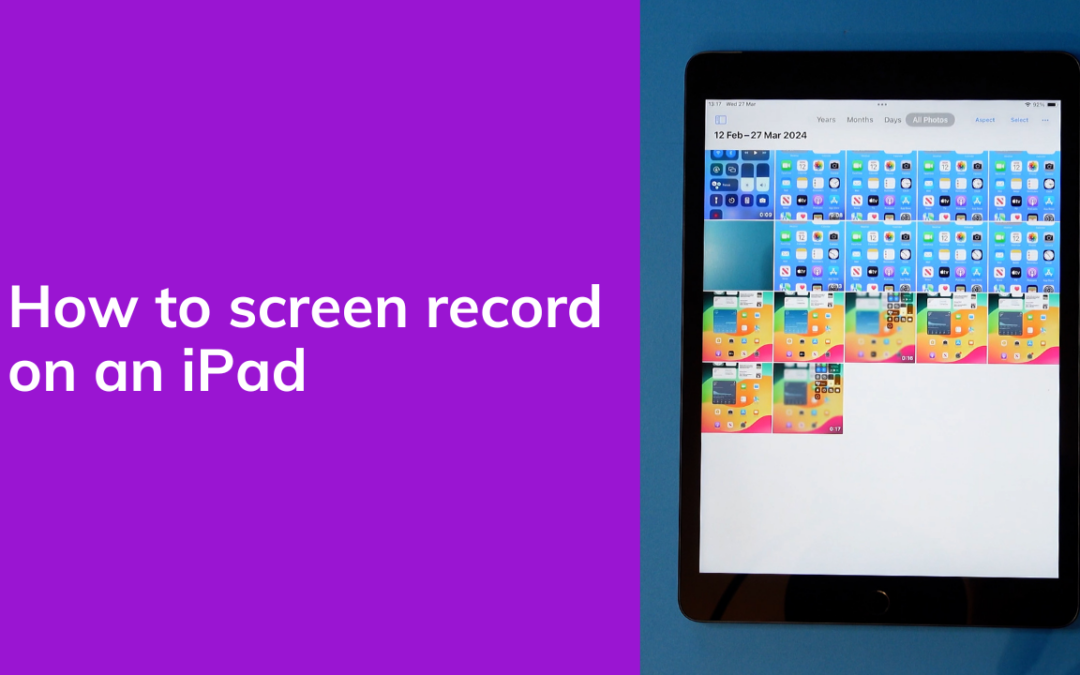
Here's how to screen record on an iPad. Follow these simple steps or watch our helpful step-by-step video.
Choose the Mozillion site for your country below.
Use our app at over 200 leading brands for the spending you already do. Get an instant reward to shrink or even wipe out your Mozillion bill every time, every month.

Choose a Mozillion plan with Kill Your Bill included, and download our Mozillion app.
Pick a gift card for where you're heading — Sainsbury's, Costa, ASOS, IKEA, and 220+ others.
Takes 10 seconds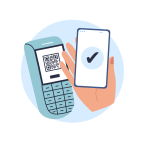
Same shop. Same basket. Same total. Nothing changes except Mozillion fires a reward straight at your phone bill.

Rewards stack automatically. Credit rolls over if you go over. Most users hit £0 within their first month.
Avg. user hits £0 in week 3