
Your troubleshooting guide to setting up your Mozillion Travel eSIM on Android
Step 1
Check eSIM profile Installation
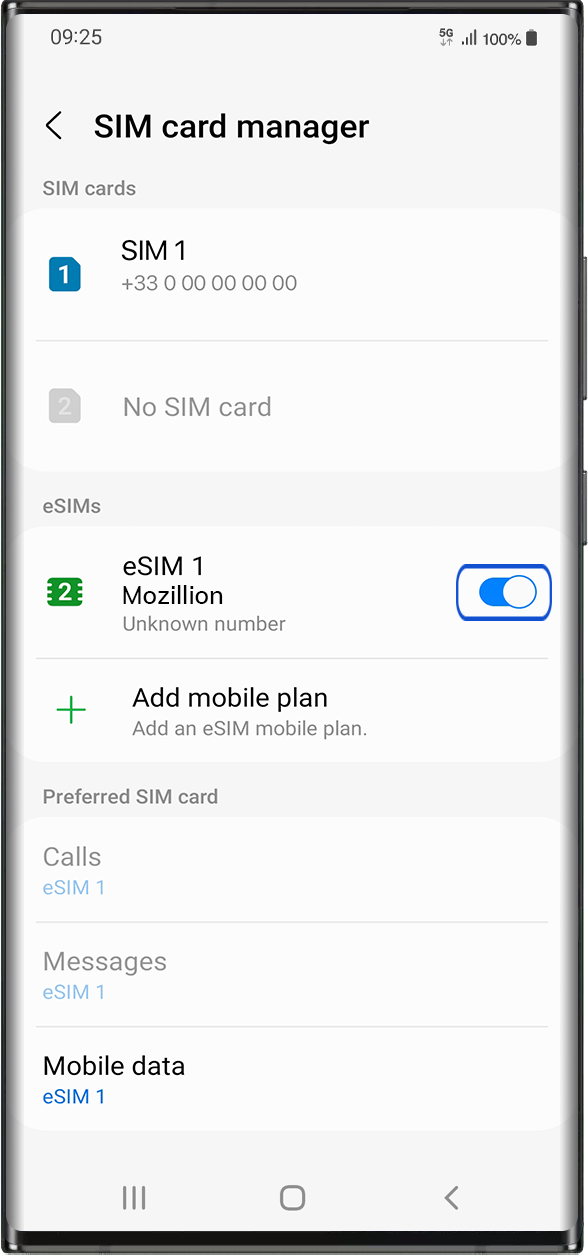
Go to: Settings > Connections > under SIM Card Manager > under eSIMs: You’ll see there the installed eSIM profile appear.
If your eSIM profile is already installed, go to step 2.
If no eSIM is installed yet, go to Get started and follow instructions for your device.
If you deleted your eSIM profile, please follow instructions on this link.
Step 2
Check eSIM Profile Activation
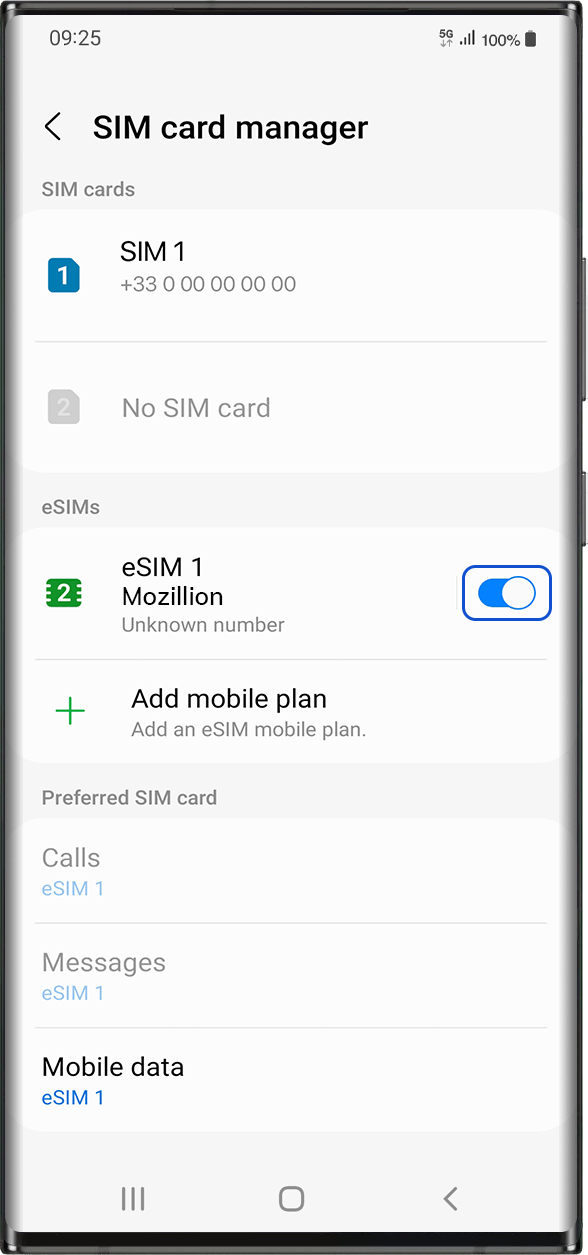
Then, you need now to check if your eSIM profile is activated on your device.
Go to: Settings > Connections > under eSIMs, select the installed eSIM profile (it will appear as “eSIM1, eSIM2,…” or under the name you renamed it).
Activate the profile by pressing the button on the right to turn it on (it will turn blue).
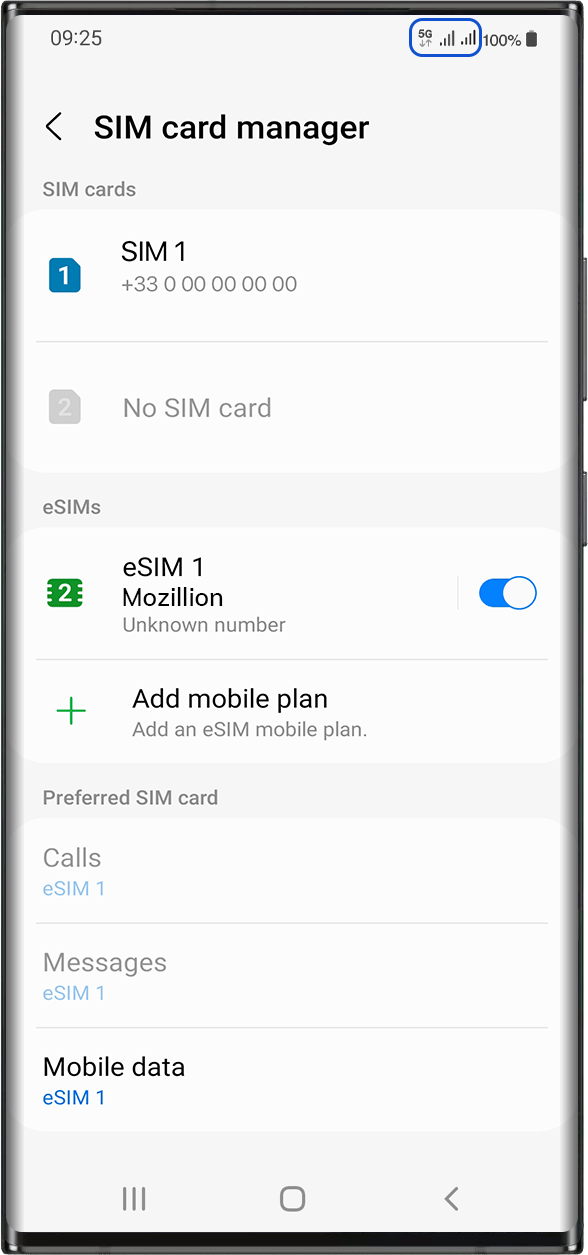
As soon as your profile is activated, a double network signal will appear at the top of your screen.
NB: the double network only appears if you also have a physical SIM card installed on your device.
Step 3
Apply Data to eSIM Profile
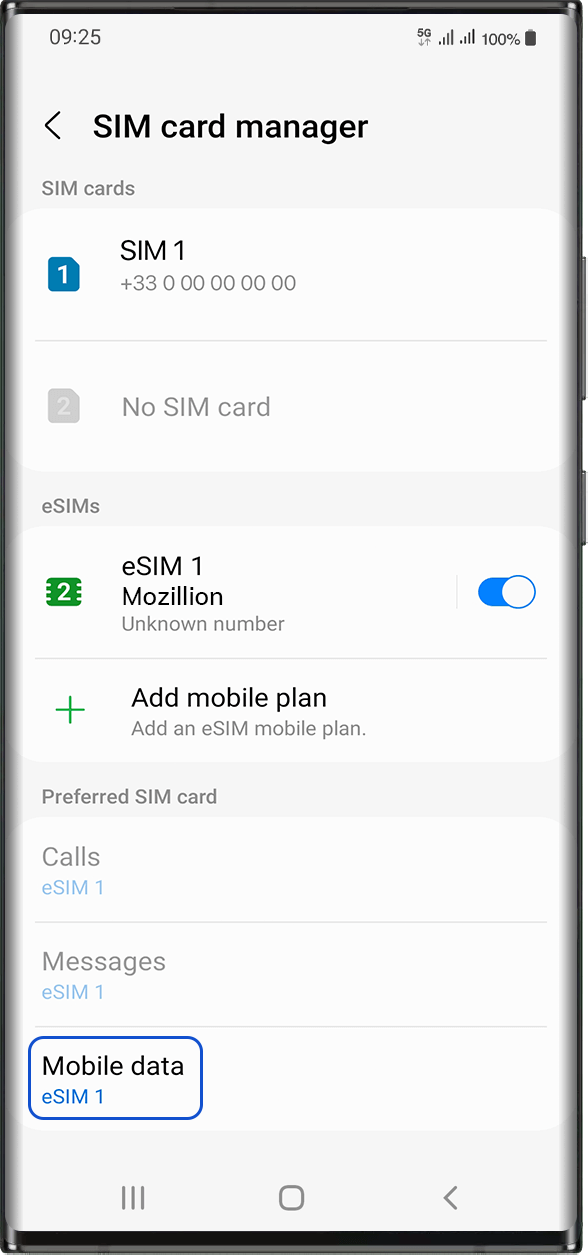
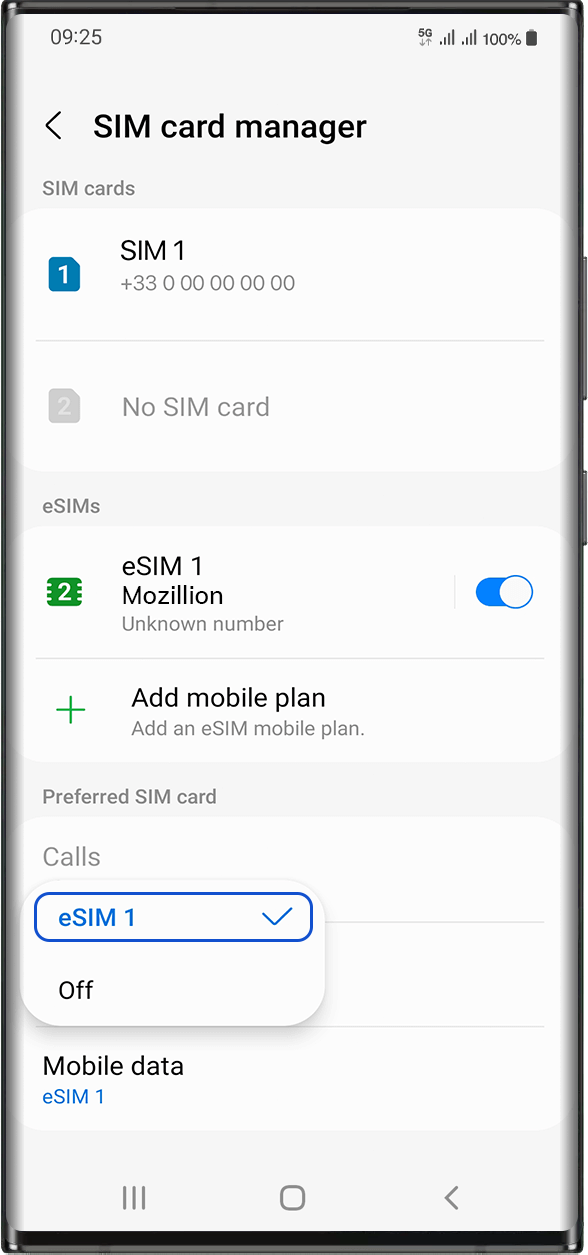
Mobile Data has to be applied to the Mozillion Travel eSIM profile to access the Internet.
To do that, go to:
Settings > Connections > SIM Card Manager. Under “Preferred SIM cards”, tap on Mobile Data and select the eSIM profile you want to apply data to. The tick  will appear in front of it when it is selected.
When you have multiple SIM cards/eSIMs (“plans”) on your device, it is not possible to activate cellular data on two data plans at the same time. You can only apply it to one at a time.
Step 4.1
Check APN configuration
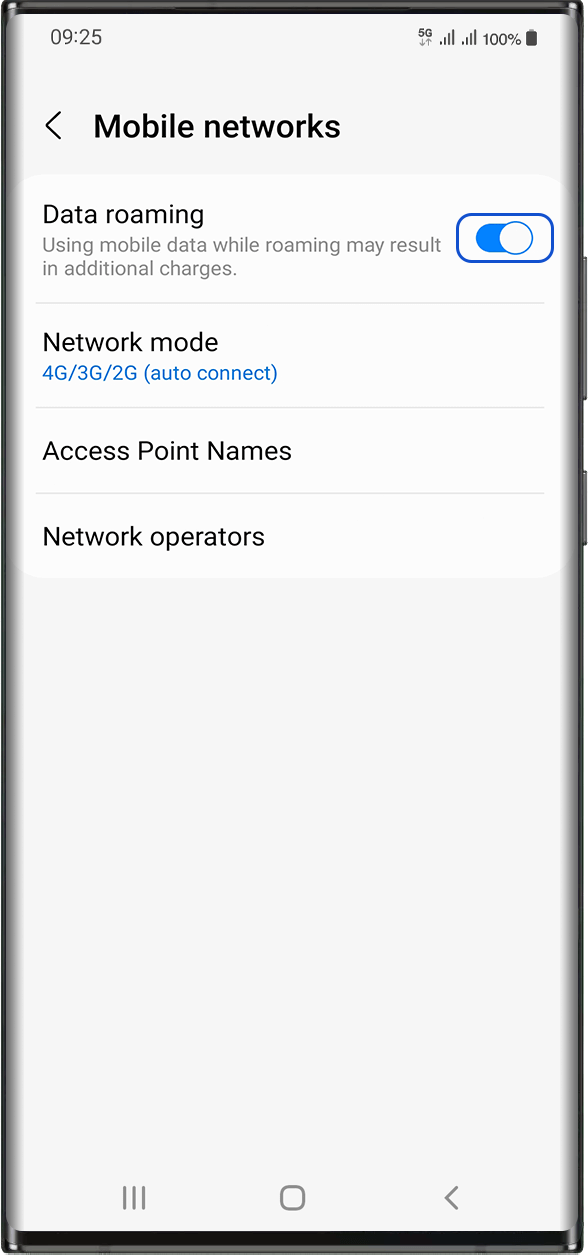
Now ensure that the Data roaming option is activated on your device.
Once you made sure you have applied mobile data to your Mozillion Travel eSIM profile, go to: Settings > Connections > Mobile Networks > Activate Data Roaming.
Important:
if you have carefully followed previous steps, mobile data must applied to your Mozillion Travel eSIM profile (and NOT to your physical SIM card if you have one). This means that you won’t have extra roaming costs as only Mozillion Travel eSIM rates will be applied while using the Travel eSIM. In any case, always ensure that mobile data is applied to your Mozillion Travel eSIM profile to avoid extra roaming costs while abroad.
Step 4.2
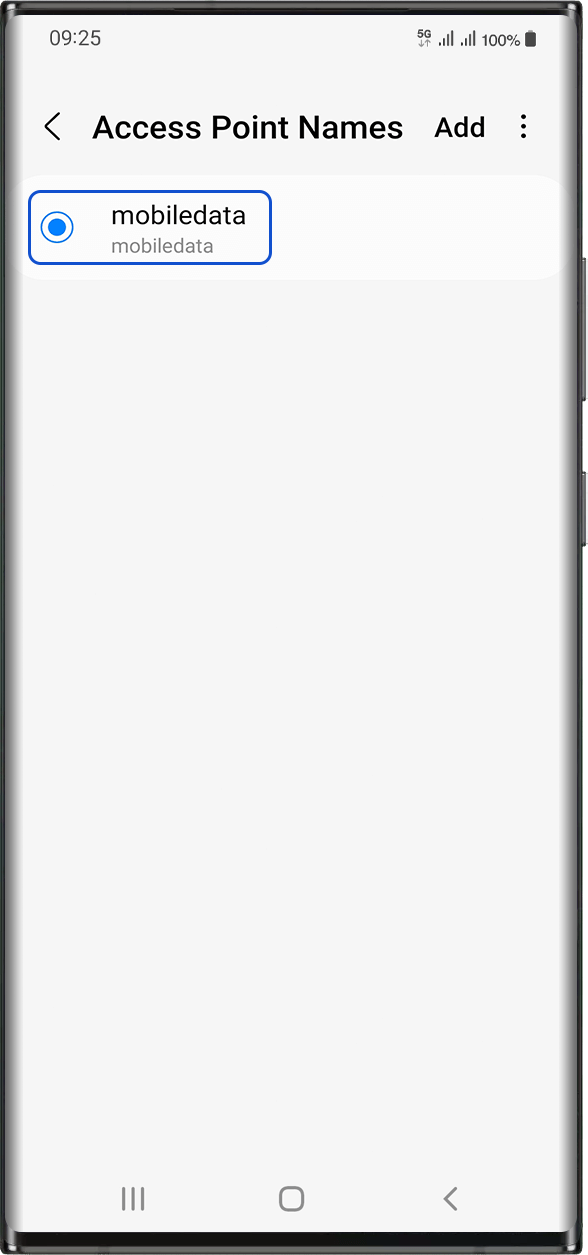
In the same screen, select Access Point Names in order to check if the APN (Access Point Name) is set:
The APN is normally set automatically: mobiledata or mbb will appear in the list. In this case, you can go to the next step.
Step 5.1
Check Network Display
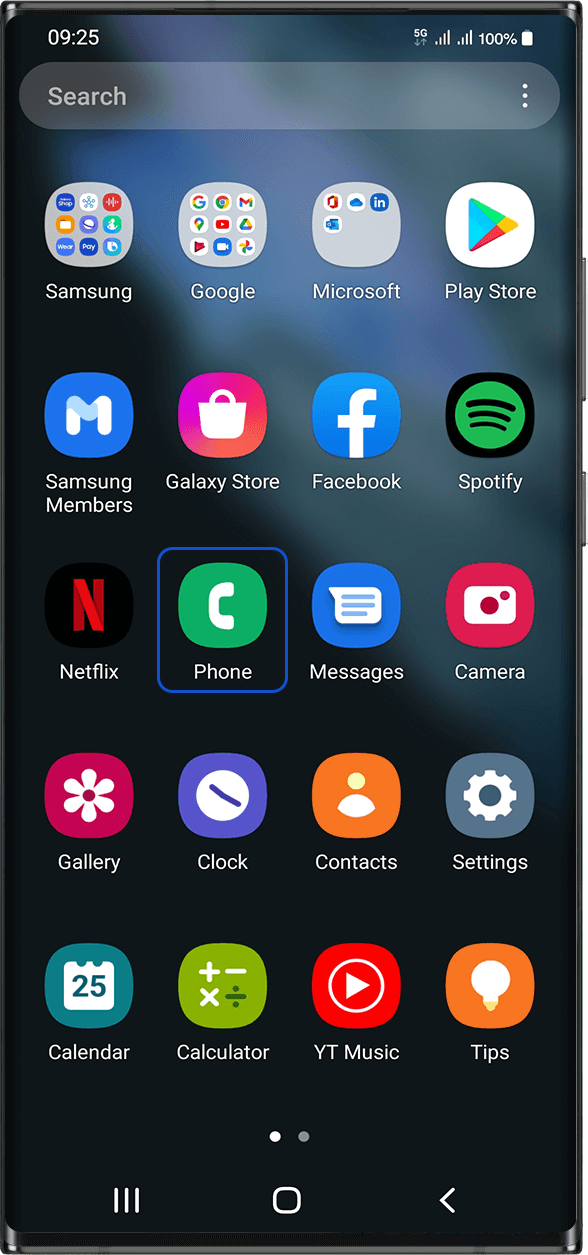
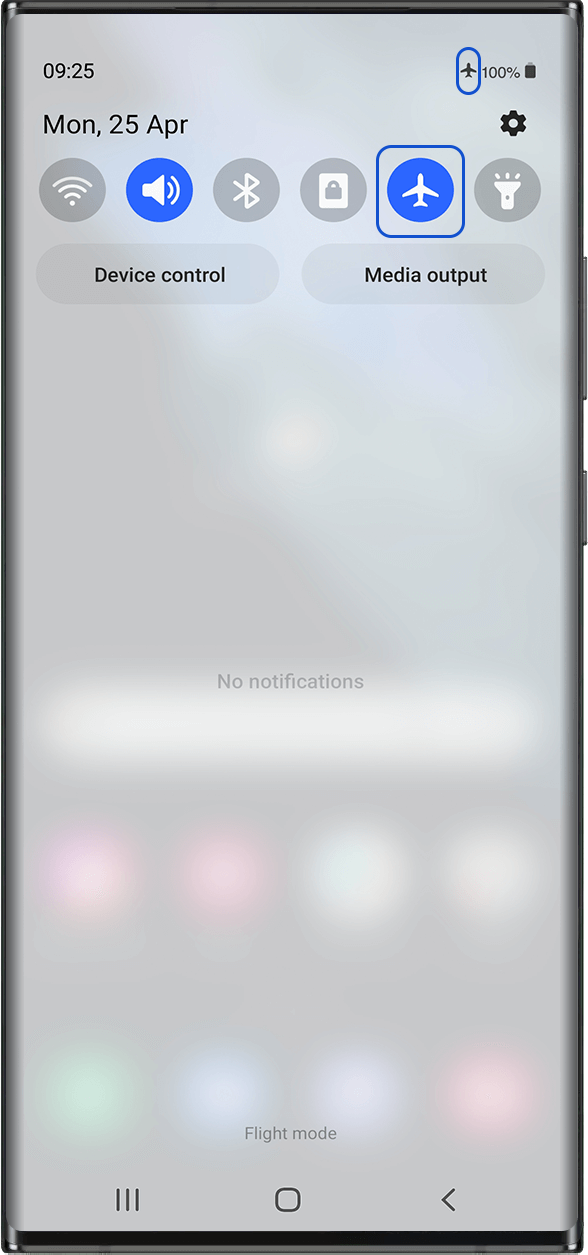
Turn ON “flight mode”for 5 seconds and turn it OFF. This action will refresh the network connection from your device.
NB: to access flight mode button, display the shortcuts page by sliding from the top of your screen to the bottom.
Step 5.2
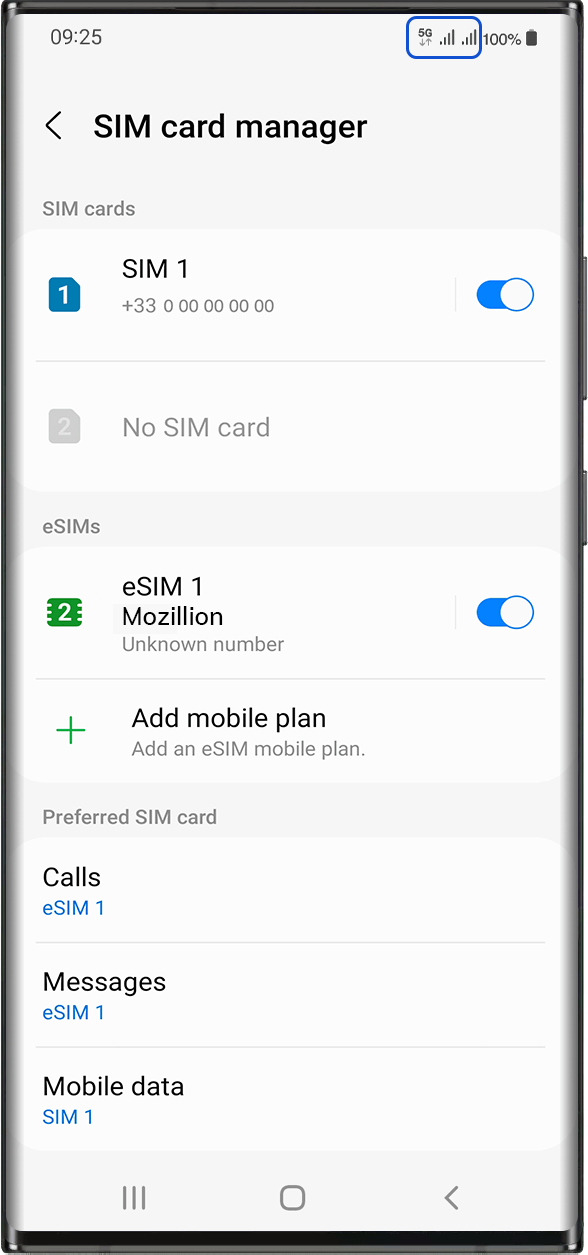
Once flight mode is off, you will normally see 1 or 2 networks appear:
The network with the 4G/5G at the front is always the eSIM/SIM card you applied data to:
If you followed carefully all previous instructions, this network should be your Mozillion Travel eSIM network.
NB: to access flight mode button, display the shortcuts page by sliding from the top of your screen to the bottom.
Step 5.3
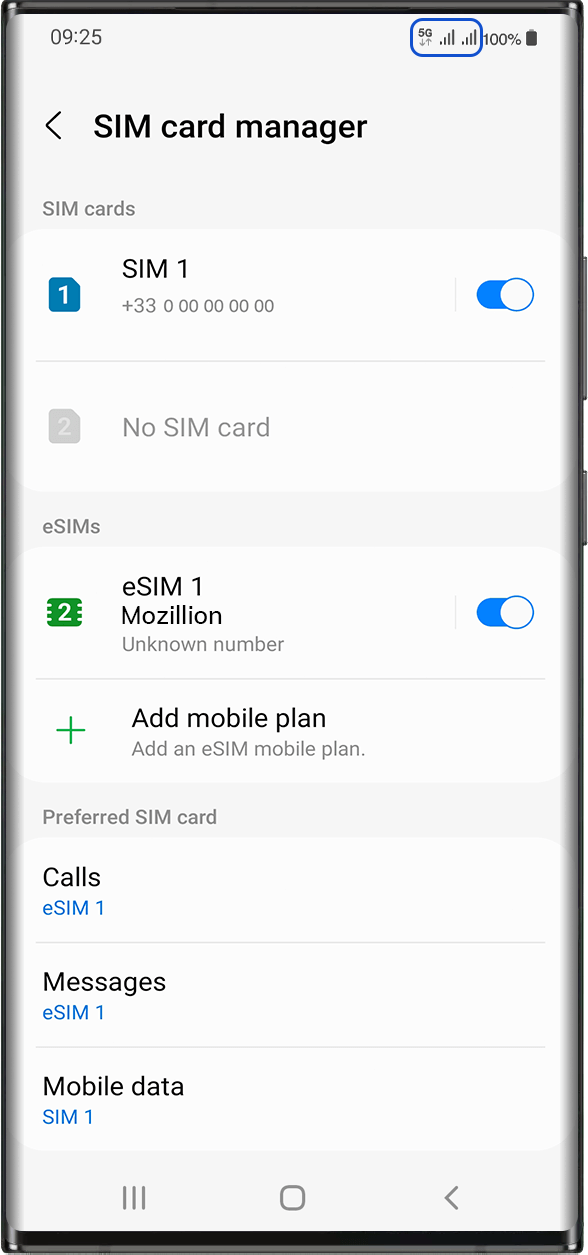
Let’s focus on the network signal with the 4G/5G icon at the front which represents your Mozillion Travel eSIM/Travel eSIM cellular connectivity:
If you have between 1 to full signal bars, it means that you are connected to the network.
NB: In case you still have no network bars displayed even after the manual selection, please contact our Customer Support for further help and provide the ICCID of your eSIM profile.