
Your troubleshooting guide to setting up your Mozillion Travel eSIM on iPad (OS)
Step 1
Check eSIM profile Installtion

Go to: Settings > Mobile Data > under Mobile Plans: installed eSIM profile will appear as Mozillion.
If your eSIM profile is already installed, go to step 2.
If no eSIM is installed yet, go to Get started and follow instructions for your device.
If you deleted your eSIM profile, please follow instructions on this link.
Step 2
Check eSIM Profile Activation
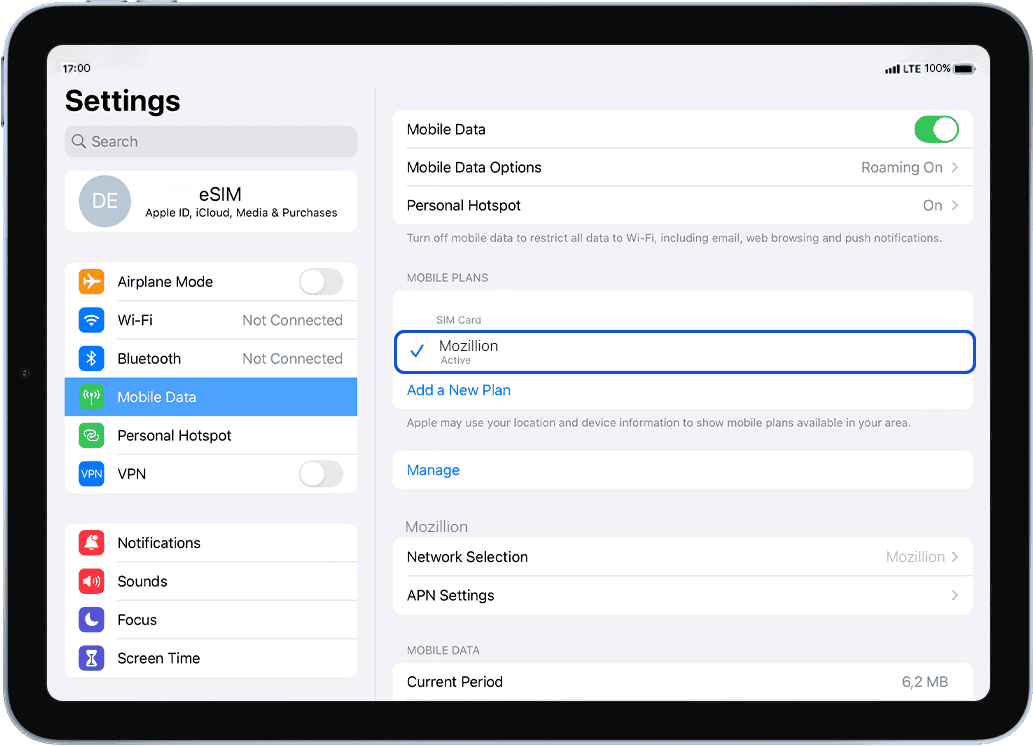
Check if your eSIM profile is installed on your iPad
Go to: Settings > Mobile data > under Data plans, make sure that your Mozillion Travel eSIM profile is selected with a  .
.
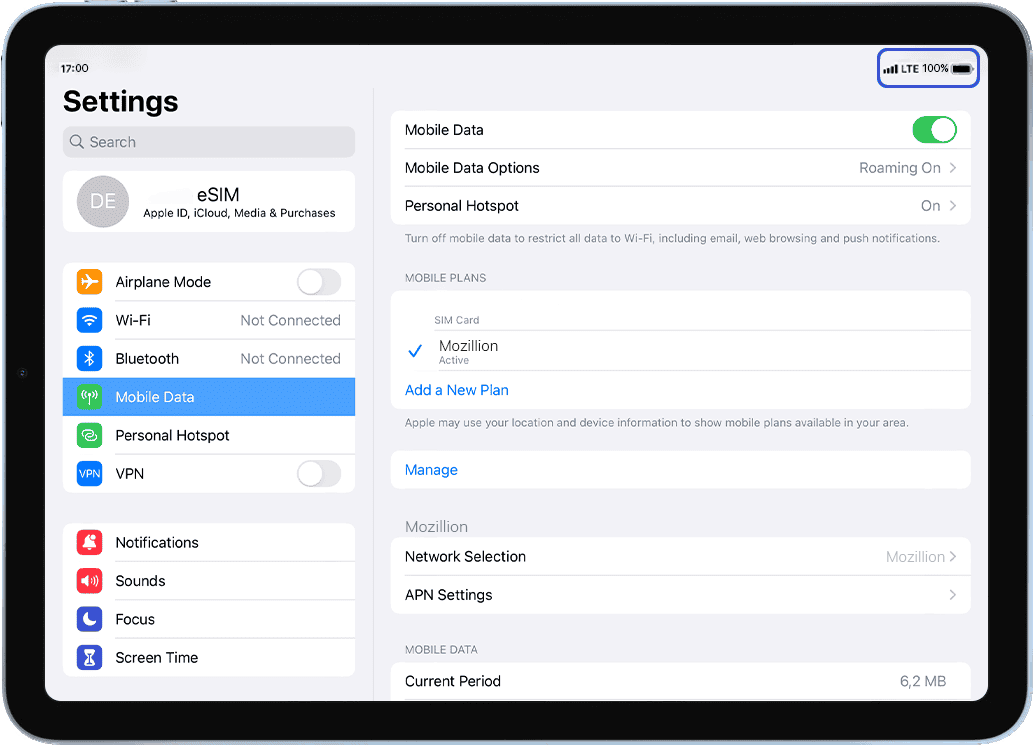
As soon as your profile is activated, the network signal will appear at the top of your screen.
Step 3
Apply data eSIM Profile
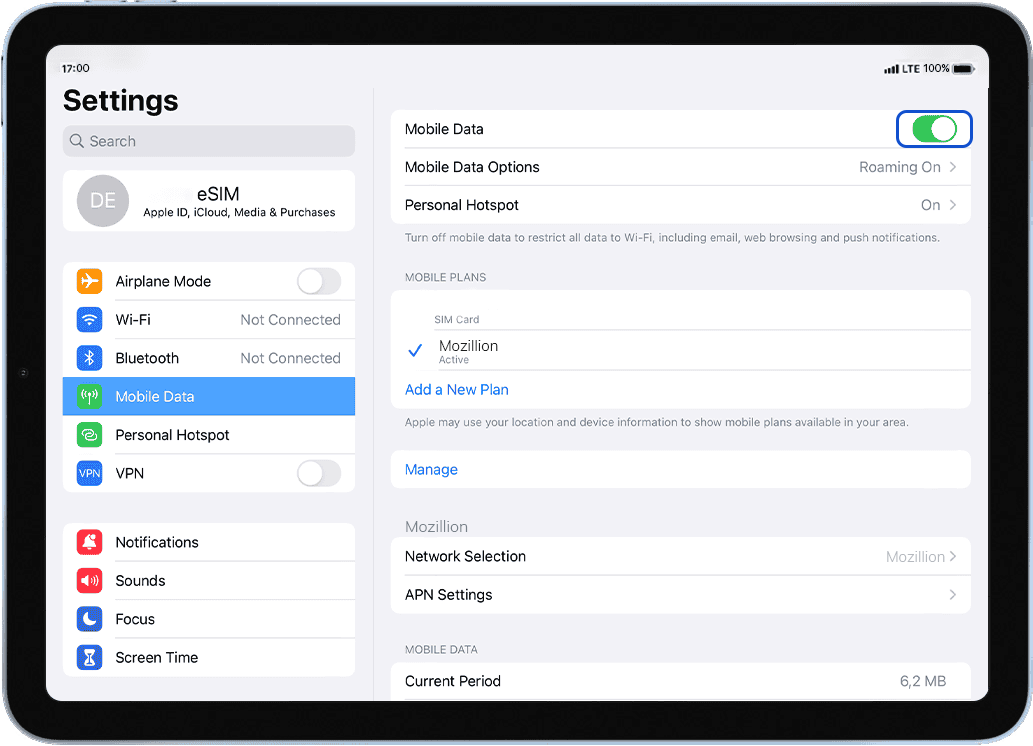
Make sure Mobile Data is activated:
Go to: Settings > Mobile data > activate Mobile data at the top: make sure that the button is turned on (in green).
Step 4
Check APN Configuration
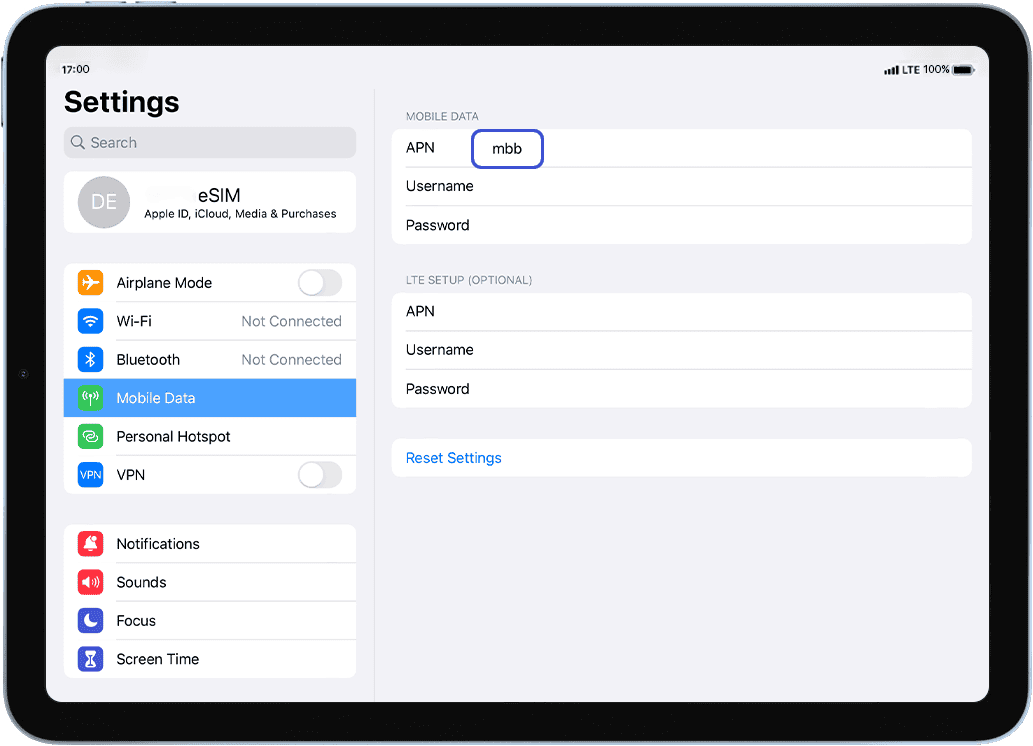
In the same screen, select APN Settings in order to configure the APN (Access Point Name):
In the APN field, make sure that mbb is specified. If not, type it in the field.
Step 5.1
Check Network Display
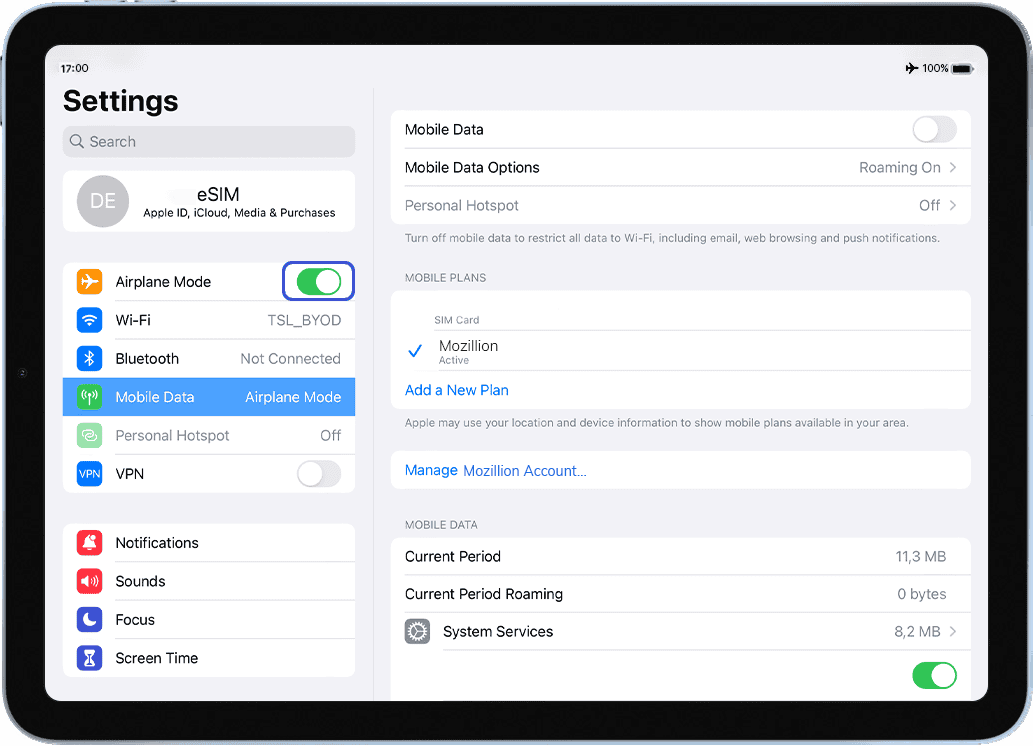
Turn ON “flight mode” for 5 seconds and turn it OFF. This action will refresh the network connection from your device.
Step 5.2
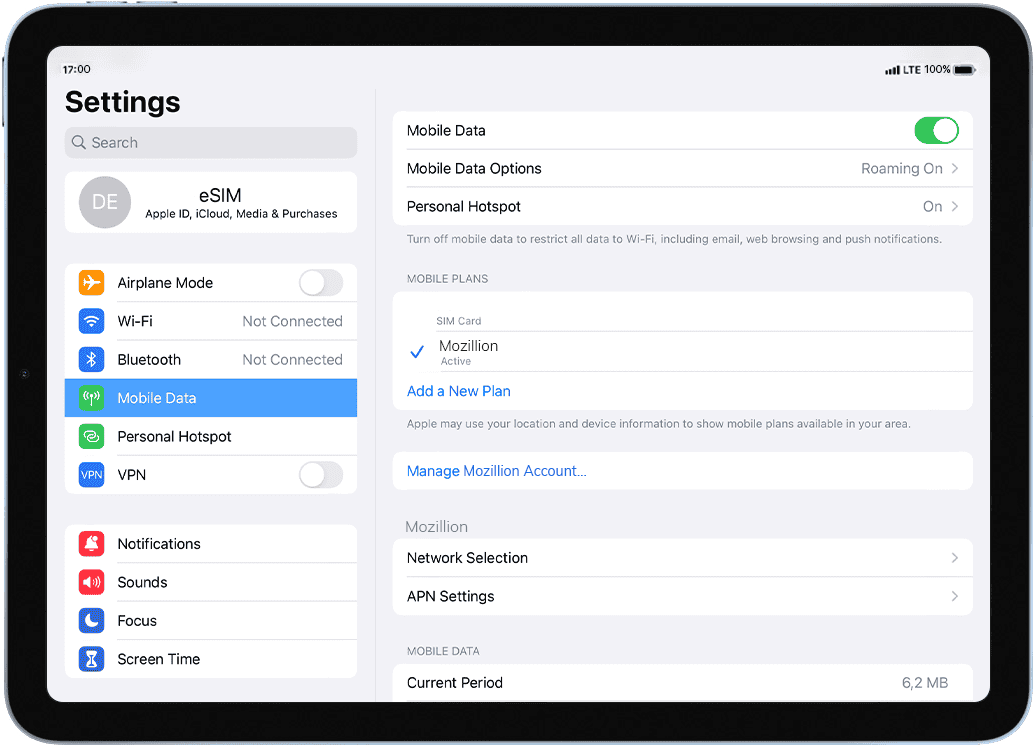
Once“flight mode” is off, you will see the network appearing at the top.
In case no network is displayed even after several minutes, go to Network Selection on this same menu > Deactivate Automatic Mode > select a Network on the list that will be displayed after few seconds.
NB: In case you still have no network bars displayed even after the manual selection, please contact our Customer Support for further help and provide the ICCID of your Travel eSIM profile.