
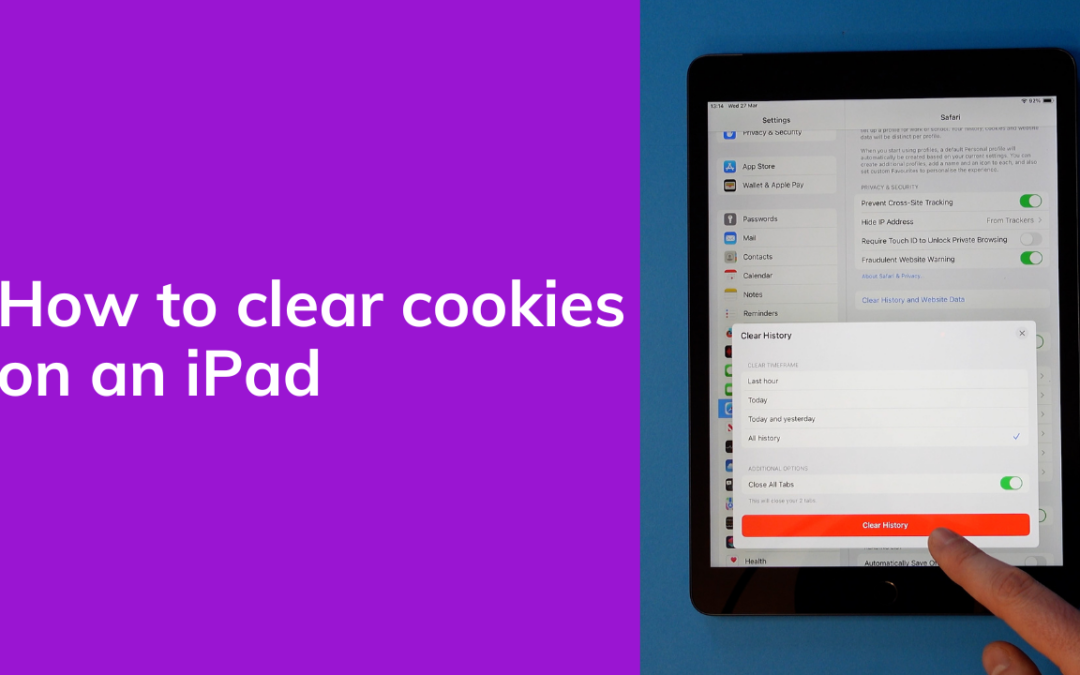
Here's how to clear the browser cookies on an iPad.
Follow these simple steps or watch our handy video below.
-
Open the settings app on your iPad.
-
Scroll down until you see Safari.
-
Tap that and you'll see a few options on the right.
-
Scroll down until you see the option that says clear history and website data.
-
Tap that and you'll see various options about how much data to delete.
-
Make sure all history and close all tabs are selected and when ready hit the big red button saying clear history.
-
Once done you'll see the clear history and website data button is grayed out which means it was successful.
-
Once you're done, head back to the home screen and that's it, cookies, browsing history and open tabs all cleared!
https://youtu.be/CII6NWMJ-_M
Subscribe to our newsletter for more mobile phone help and tips.